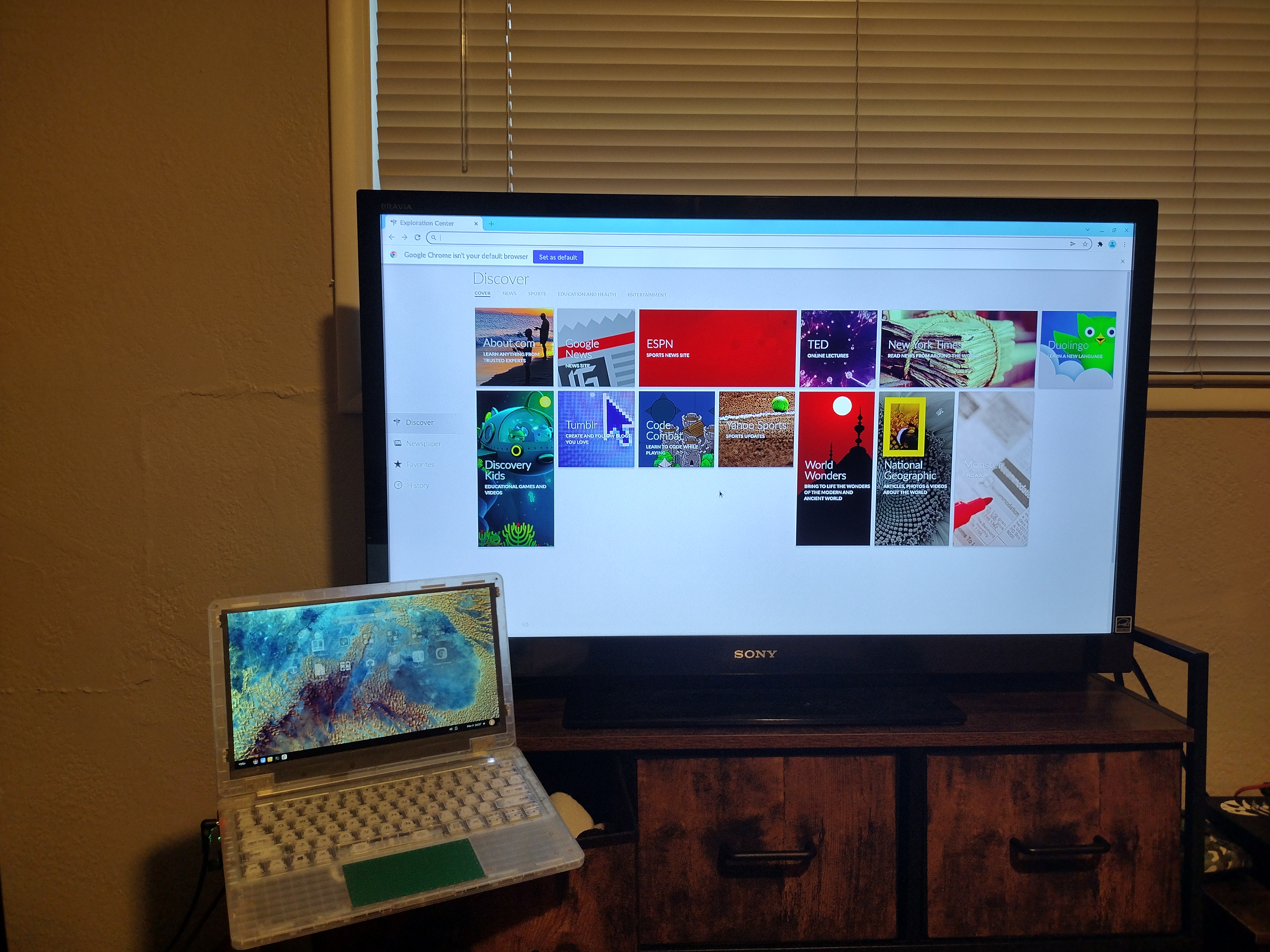
Moving Content Using USB Device
This guide will help you learn to move content from a seperate source to a securebook using a USB device.
To accomplish this task, you will need:
WP Securebook
Black (USB) Docking Station
USB Device
Desired Content
Moving Content to jadmin
To move content to a securebook using a USB device, follow these steps:
Plug the USB device into the source device from which you’ll retrieve your desired content
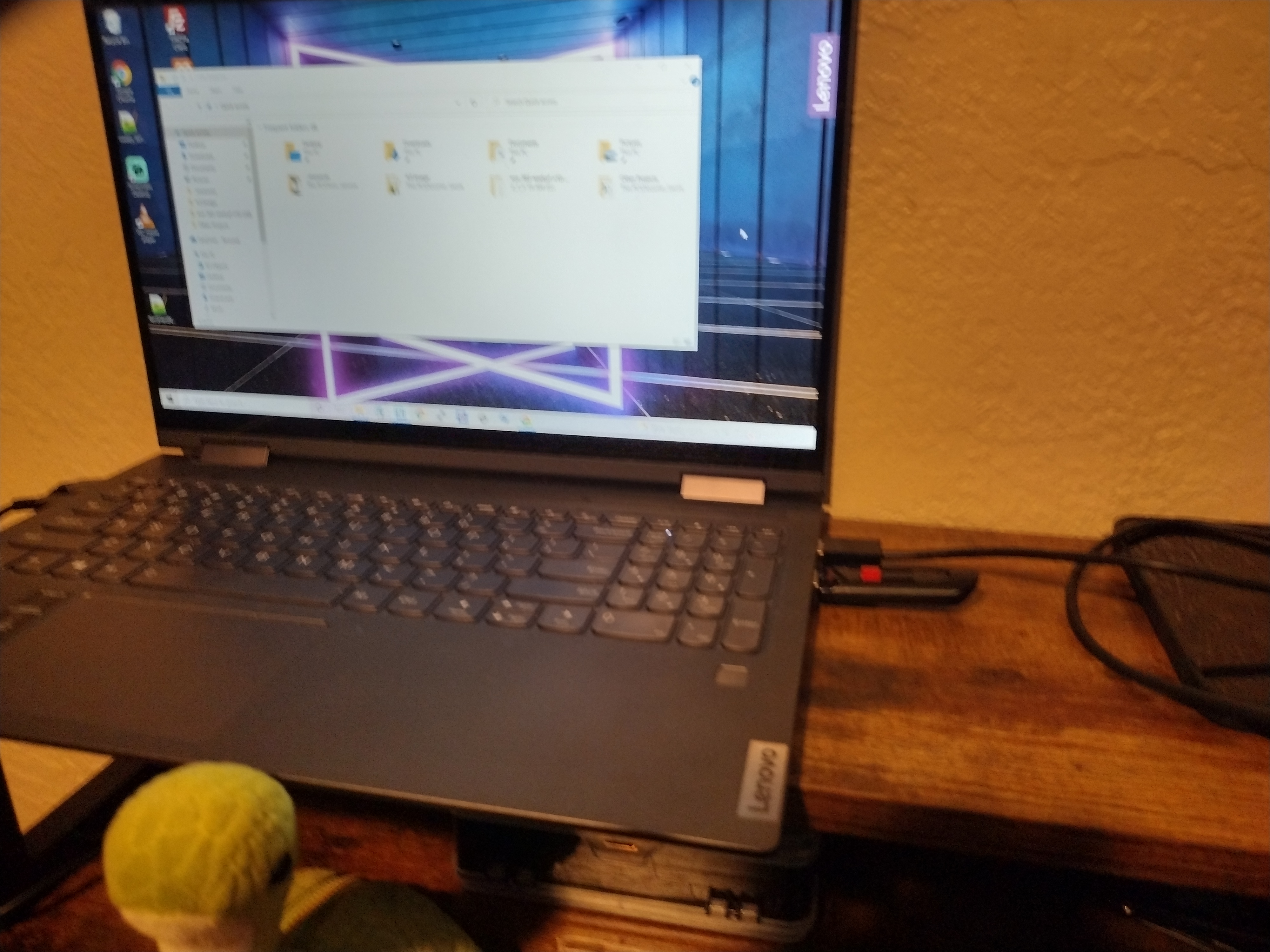
Move the desired content onto the USB device

Detach USB device from the source device

Power off the Securebook
Dock the Securebook onto the Black (USB) Docking Station
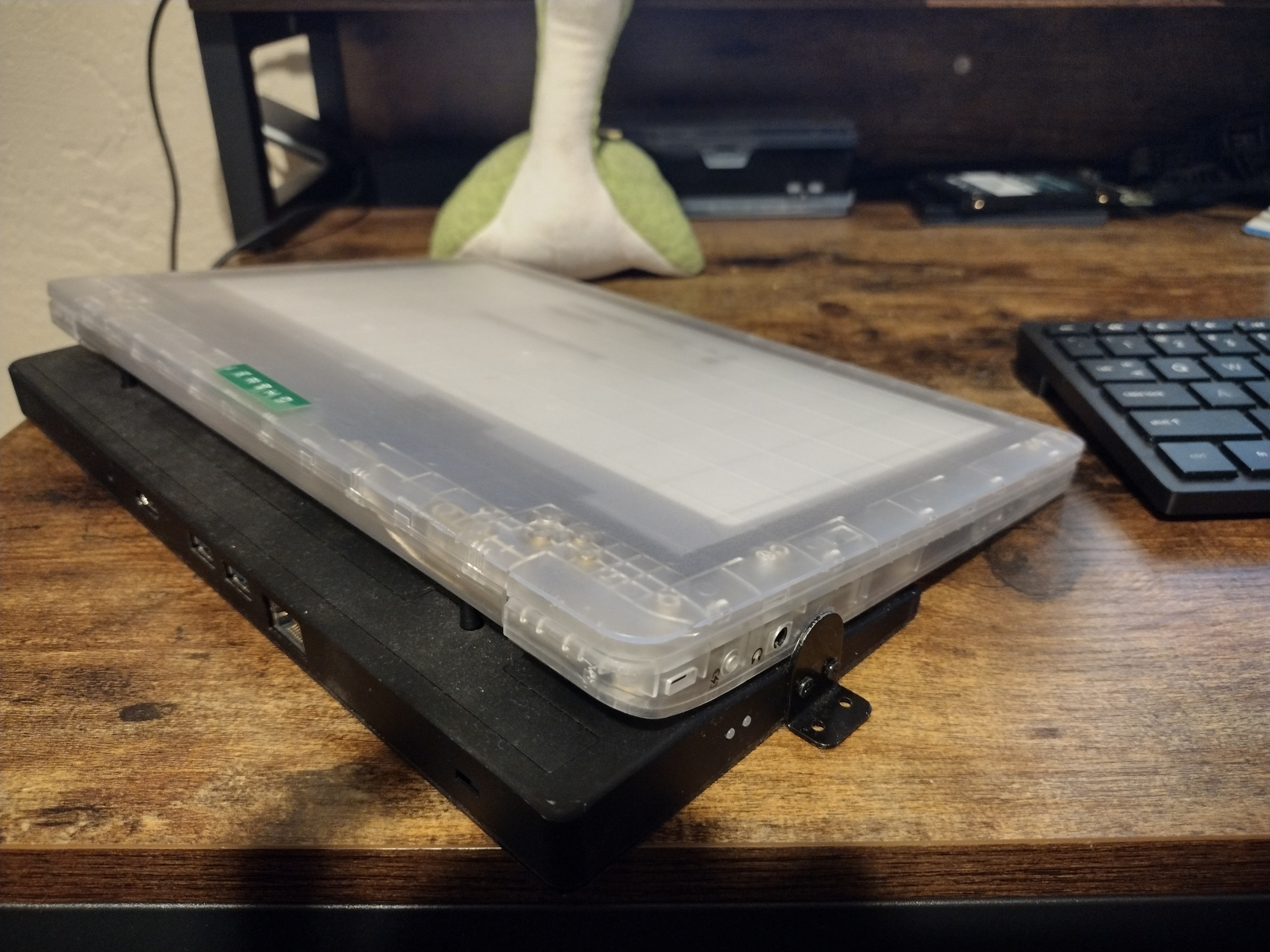
Power on the Securebook
Log in as Jadmin
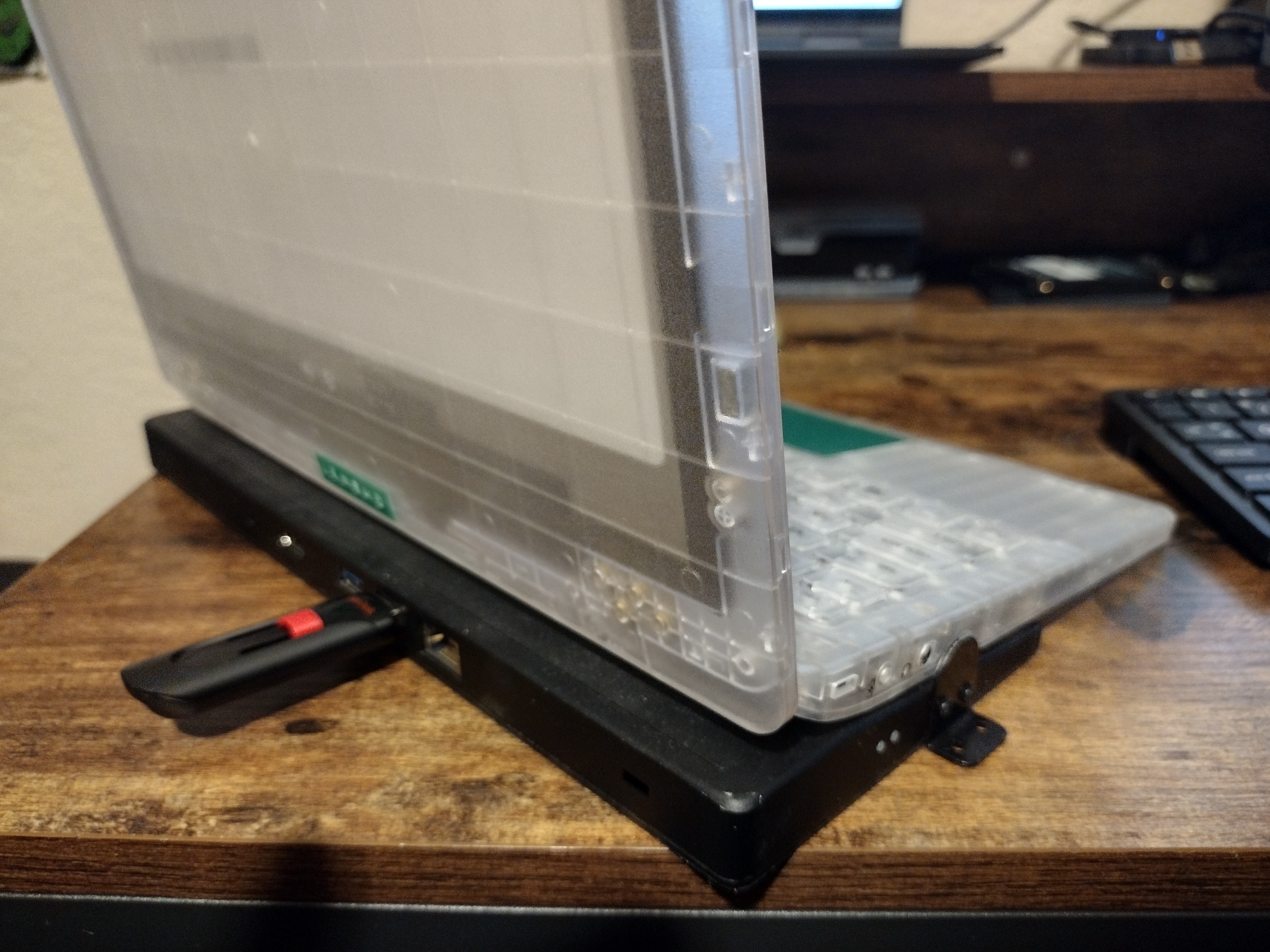
Insert the USB device to the docking station
Open the File Explorer Application
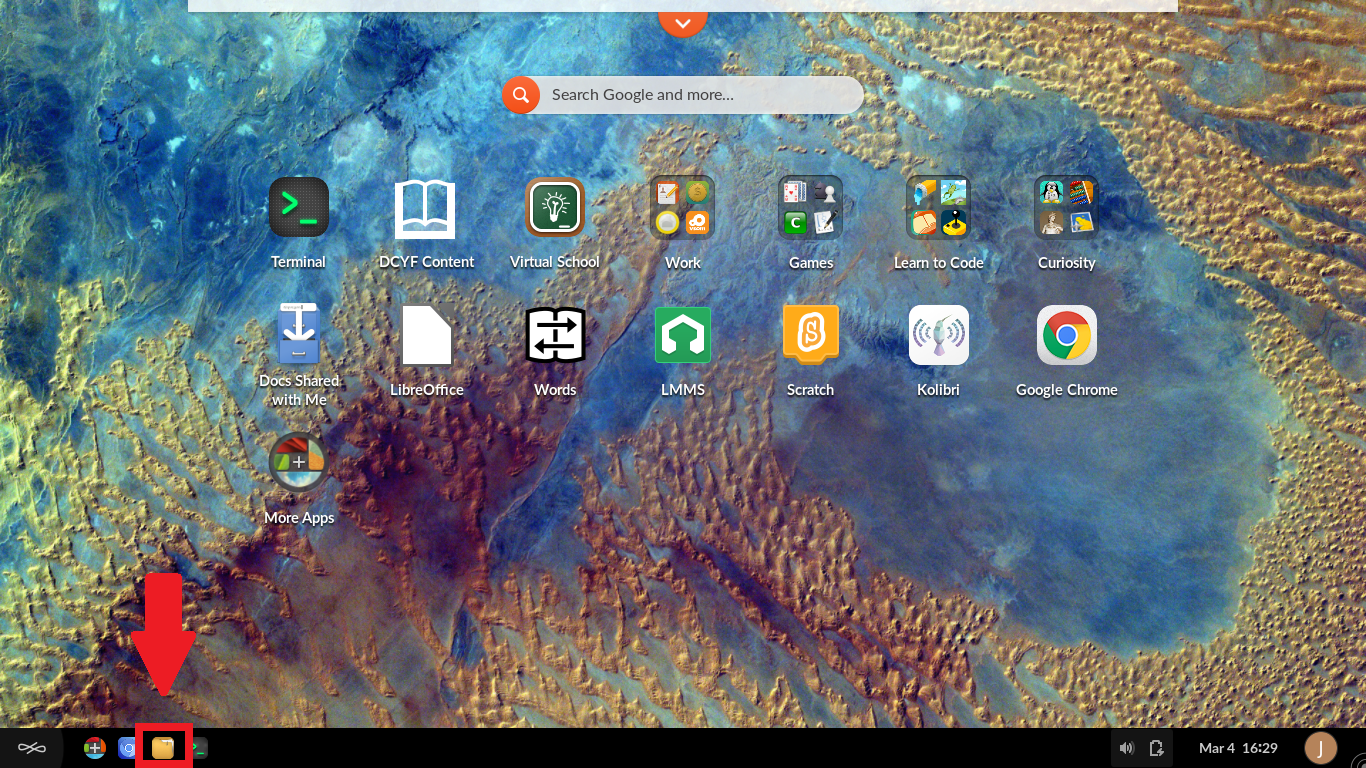
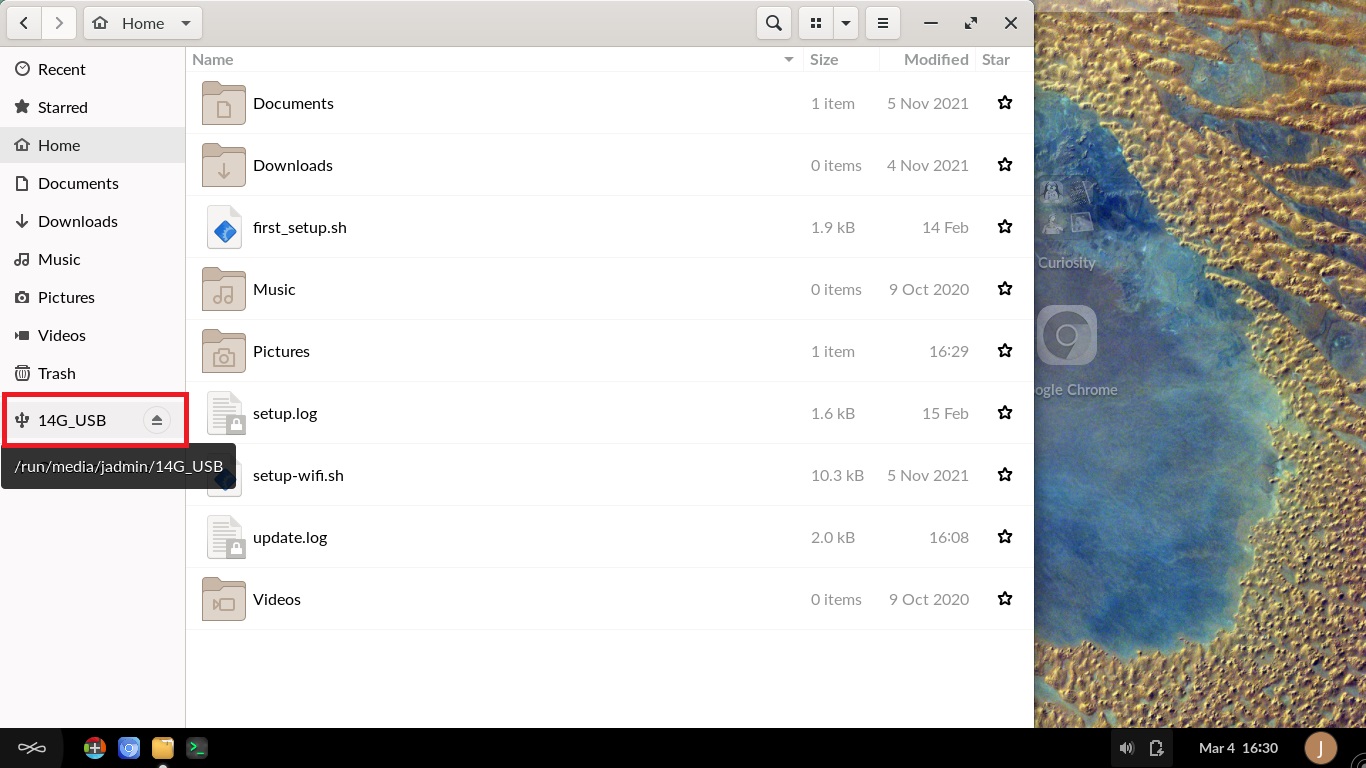
Navigate to the USB device
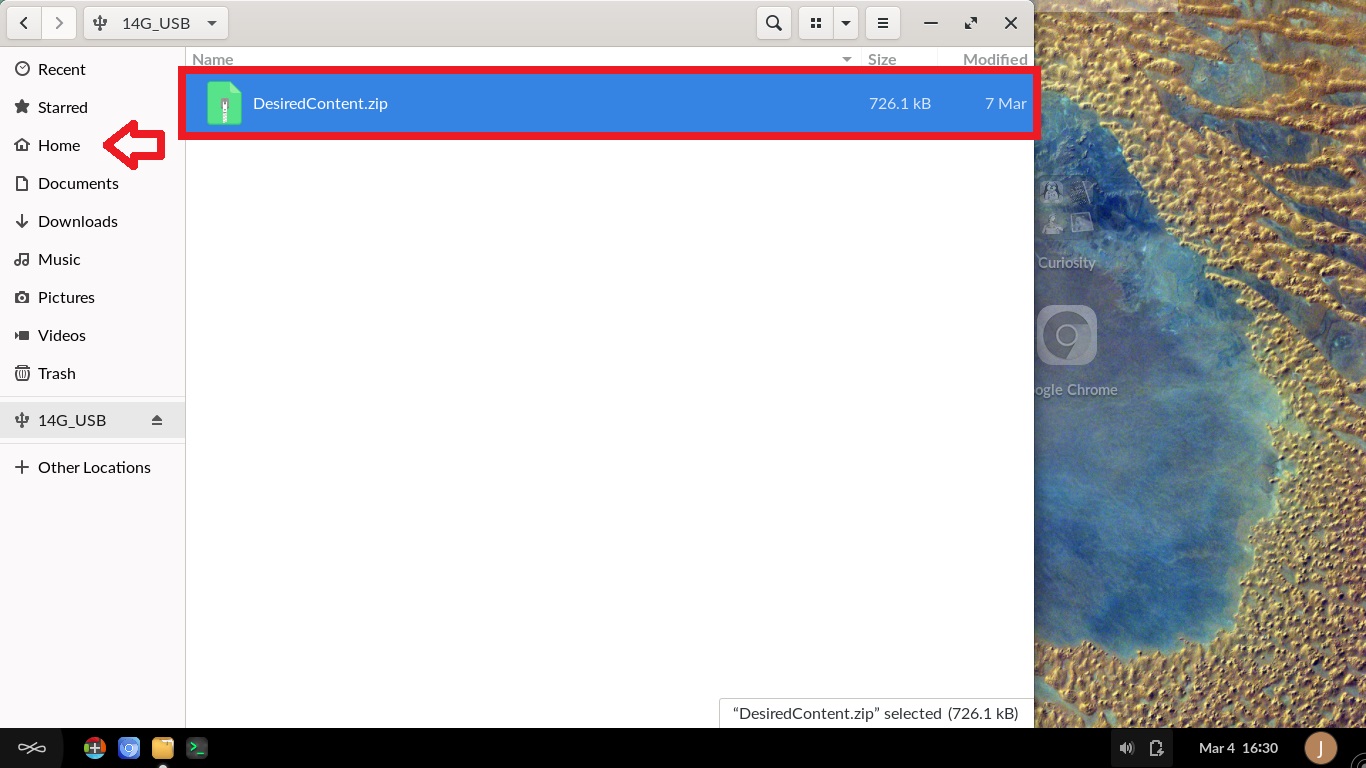
Copy the content to the jadmin home folder
Eject the USB device

The content will now be on the securebook for jadmin to access at any time.
Moving Content to Student
To move content from a USB Device to a Student’s personal Account, repeat the process shown in the “Moving Content to jadmin” tutorial but on step 7, instead of logging into jadmin, log into the desired student account, and in step 11, copy the content to the student’s home folder instead of to jadmin’s folder.
Connecting Securebook to TV
To connect a Securebook to an HDMI TV, follow these steps:
Turn off the Securebook
Dock the Securebook to a Black (USB) Docking Station
Plug in the TV’s HDMI Cable into the Black Docking Station
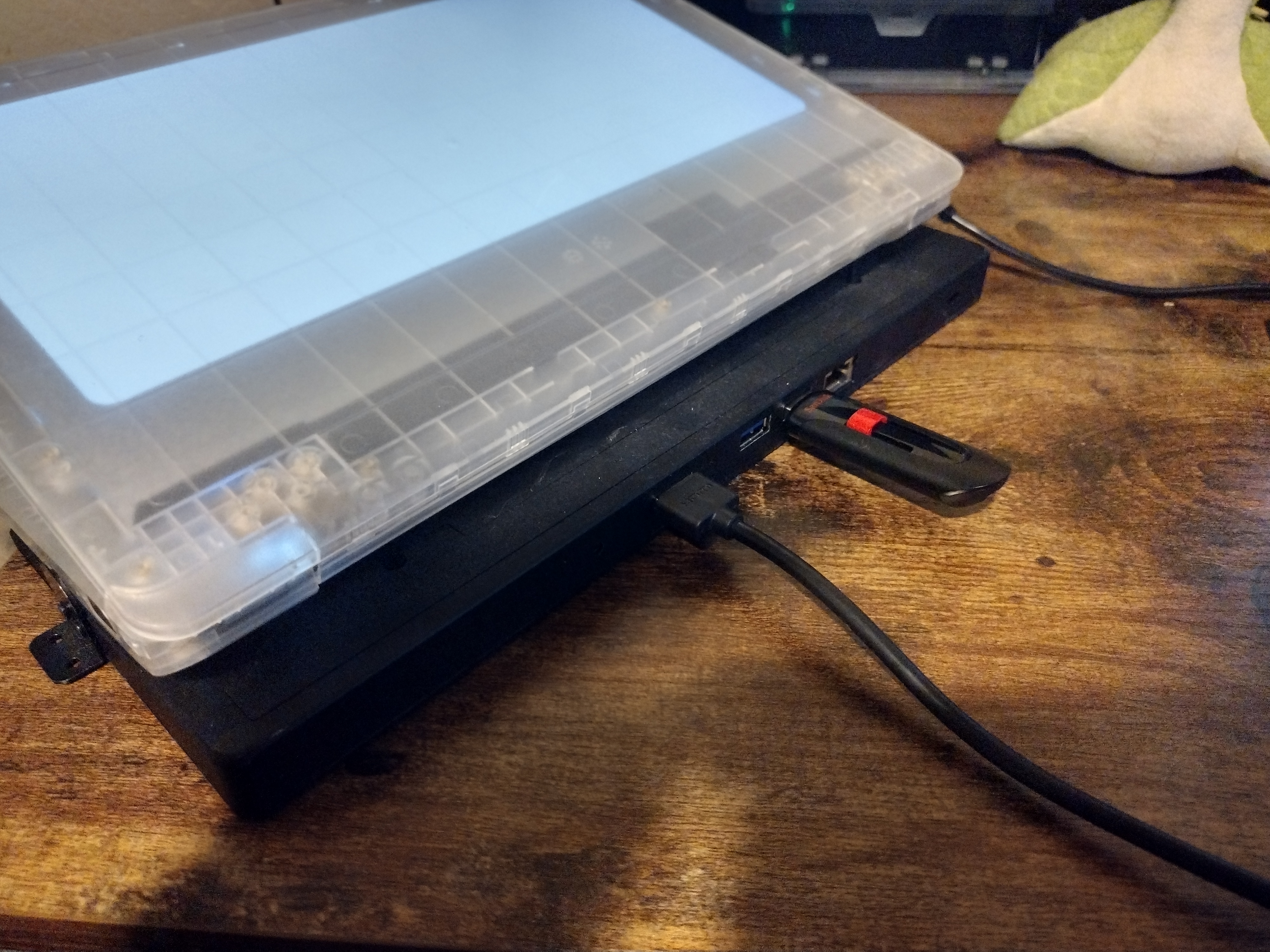
Turn on the Securebook
Log into an account
The TV will now act as a monitor for the securebook. Drag applications to the TV to view them there.