Advanced Technical Tutorials
These guides are more advanced and should be followed with caution
To accomplish these processes, you will need:
WP Securebook
Red (Wi-Fi) Docking Station (Optional)
Accessing Terminal as jadmin
Turn on the Securebook
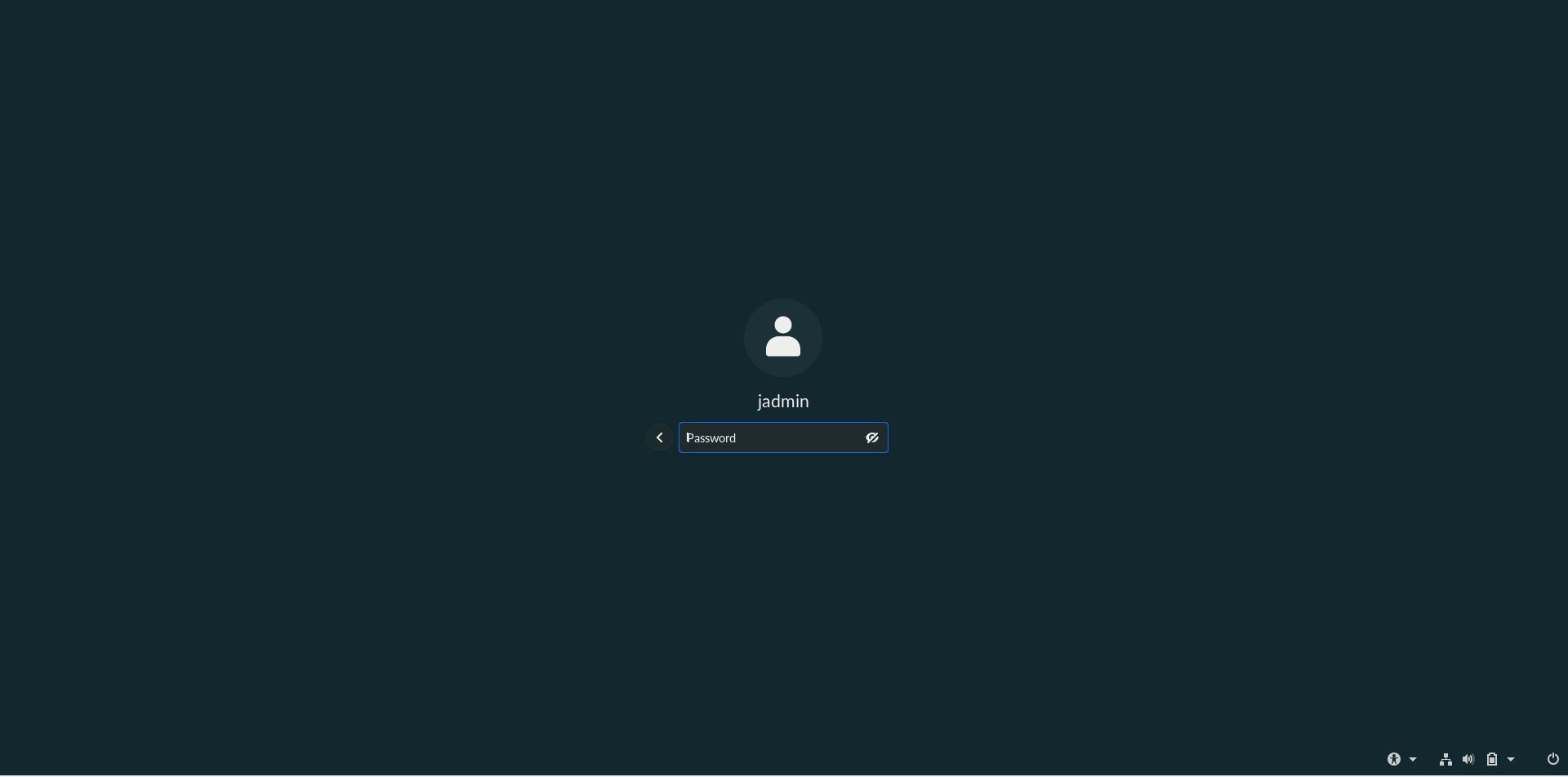
Log into jadmin profile
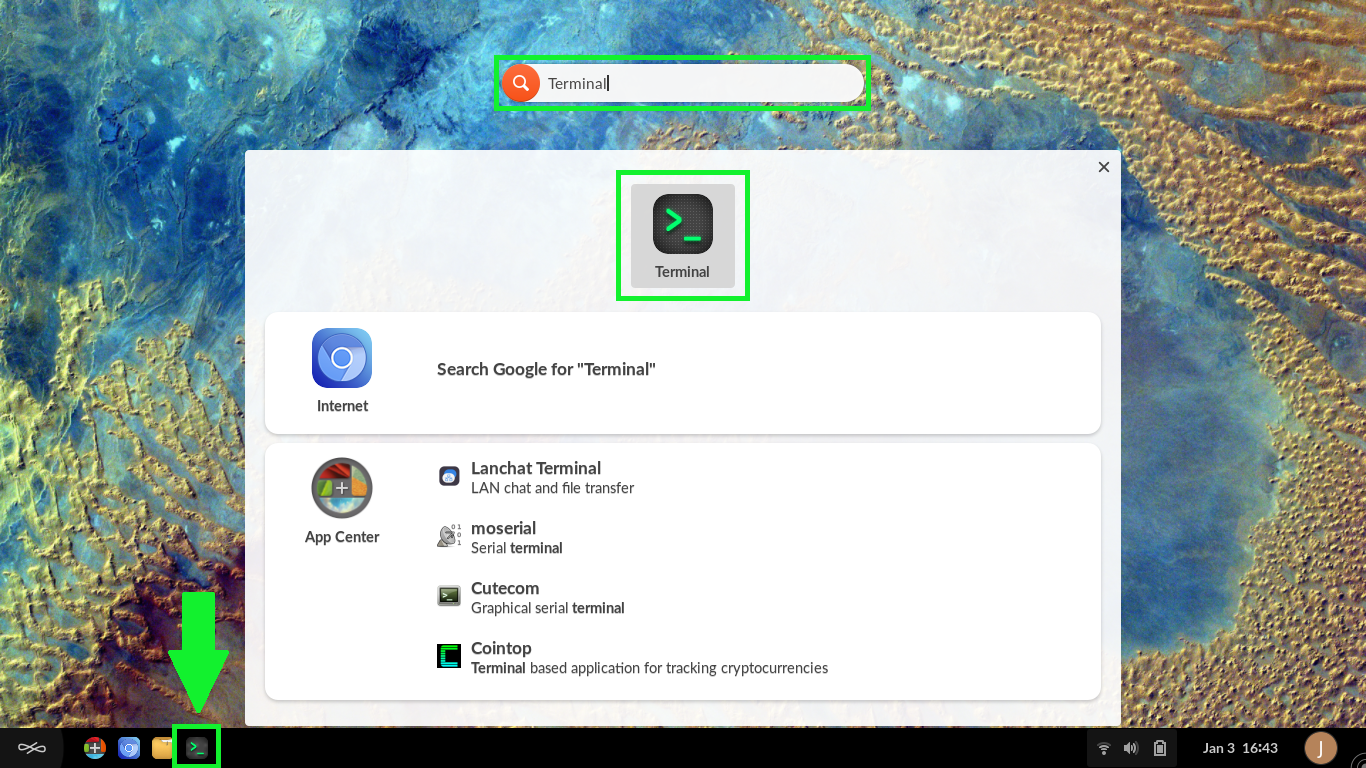
Start the Terminal Application
Changing Wi-Fi Credentials
Dock the Securebook to the WiFi Docking Station. (Optional)
Access the terminal as jadmin
Enter the following commands:
cd /etc/NetworkManager/system-connection/
Now search for network connections:
ls
Now delete the .nmconnection file that has the SSID of the network whos credentials you wish to change (example: If the SSID were WiFiUnitB then the file you want to delete would be WiFiUnitB.nmconnection):
sudo rm -r SSID.nmconnection
Now navigate to the wifi-creds file location:
cd /etc/network/
Now open the editor on the wifi-creds file:
sudo nano wifi-creds
The file will have two variables seperated by an empty space, the first being the SSID and the second being the password, edit the file to contain the updated credentials.
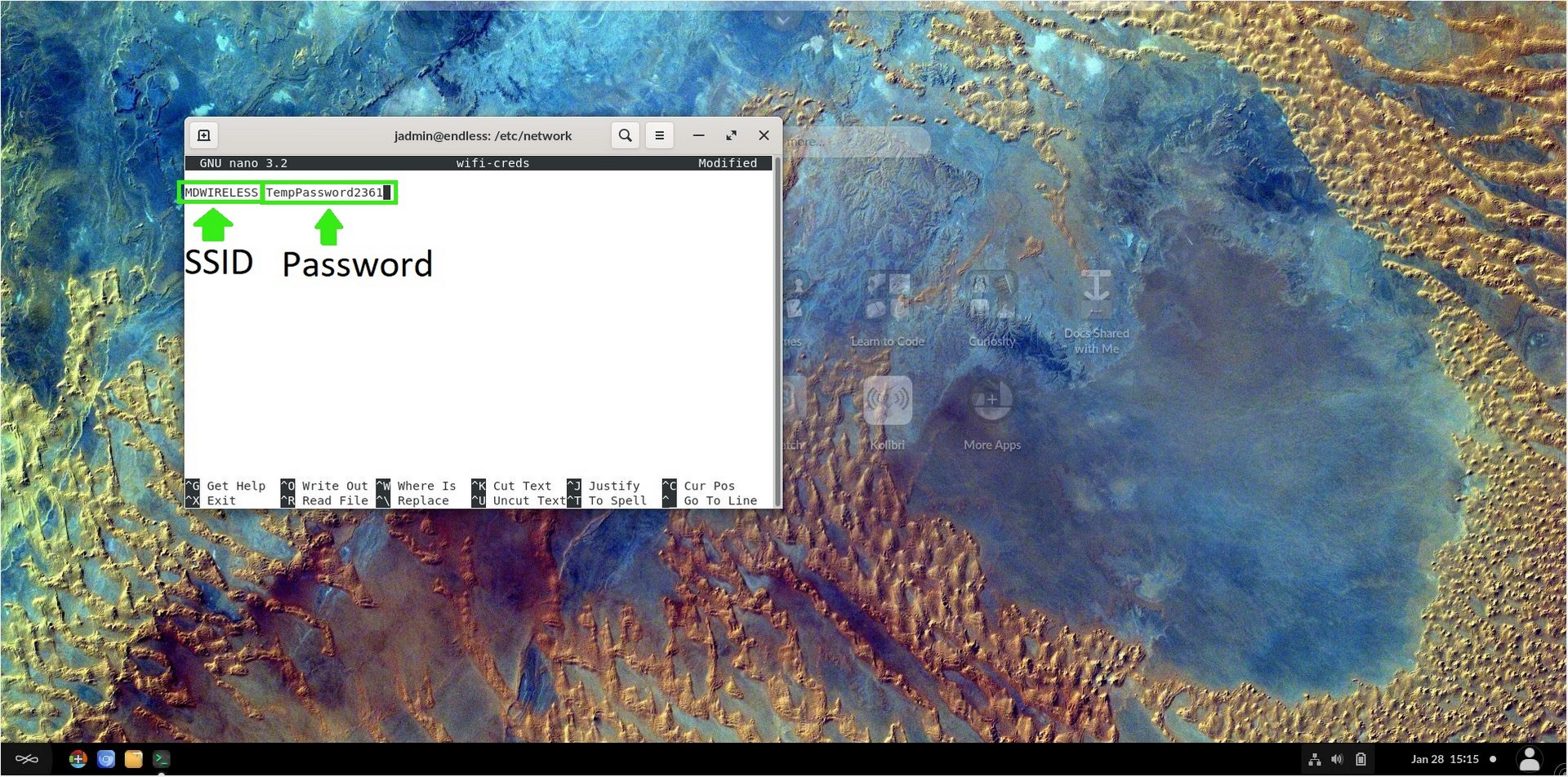
When ready to save the file, press CTL + x, y, then press enter.
Close the terminal application.
Restart the securebook.
The wifi credentials should be completely updated now.
Changing Student Account Password
Login with the jadmin account
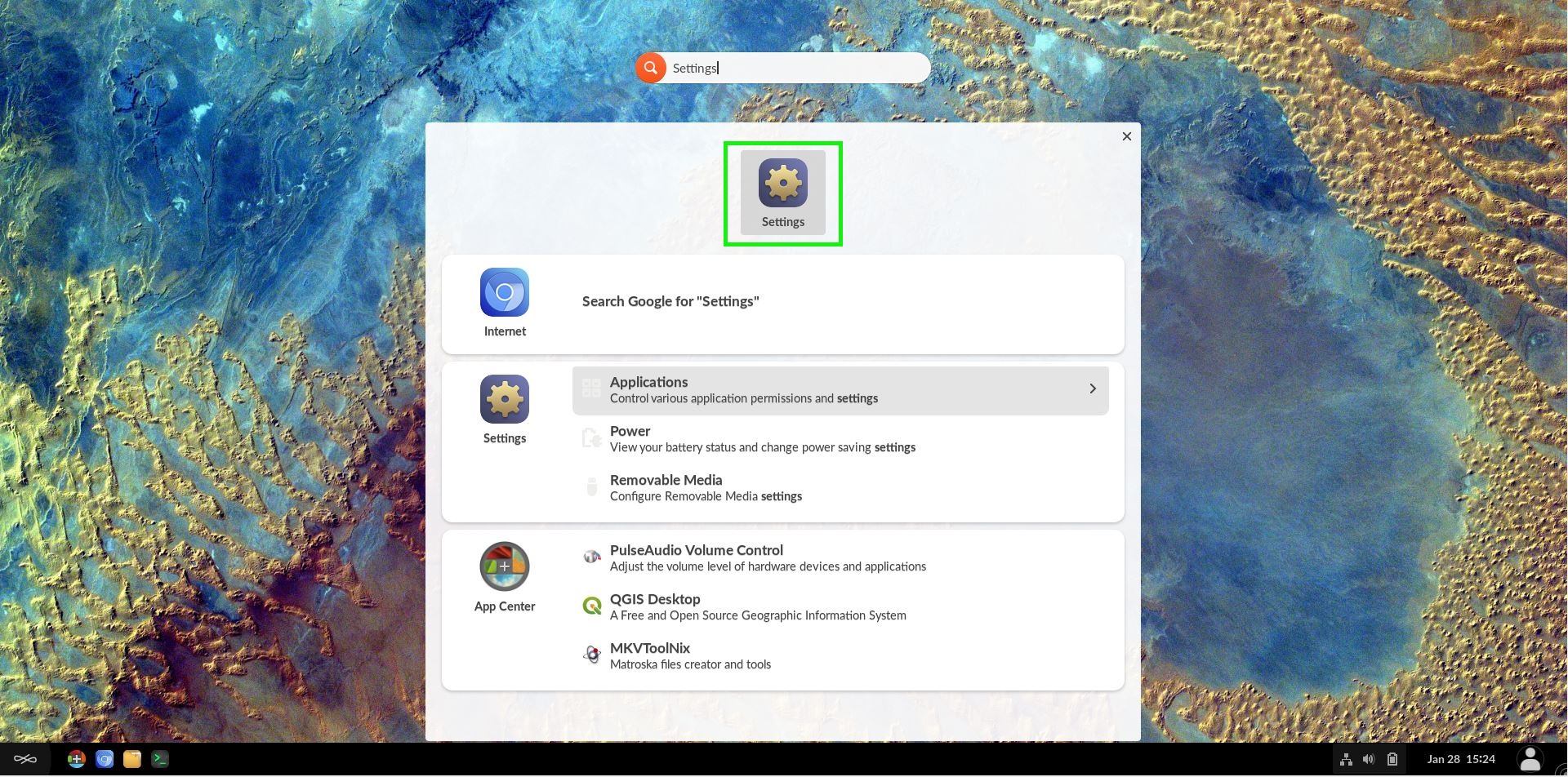
Type “Settings” in the Universal Search Bar at the top of the desktop
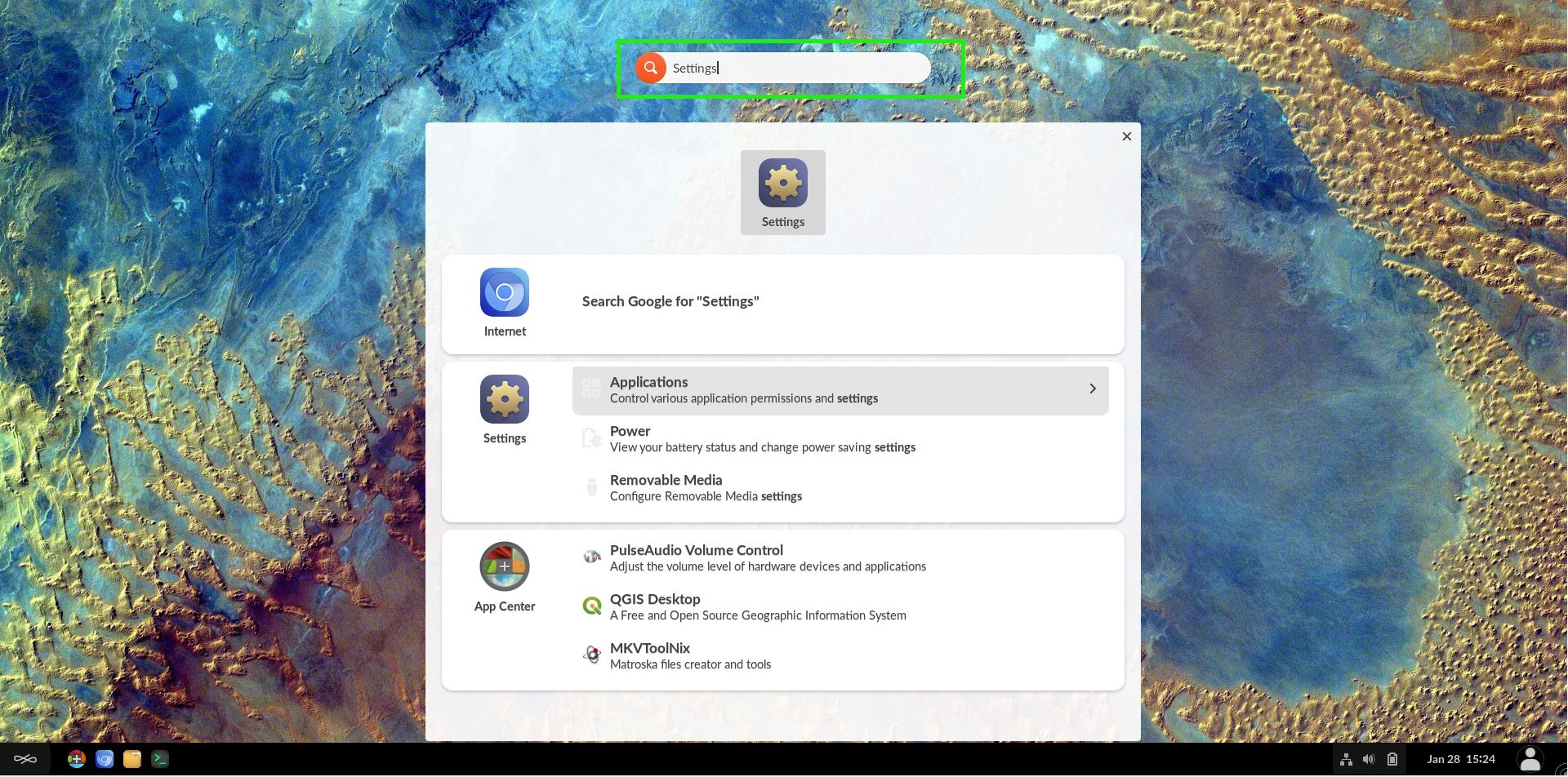
Click the gear icon that appears to open the settings window
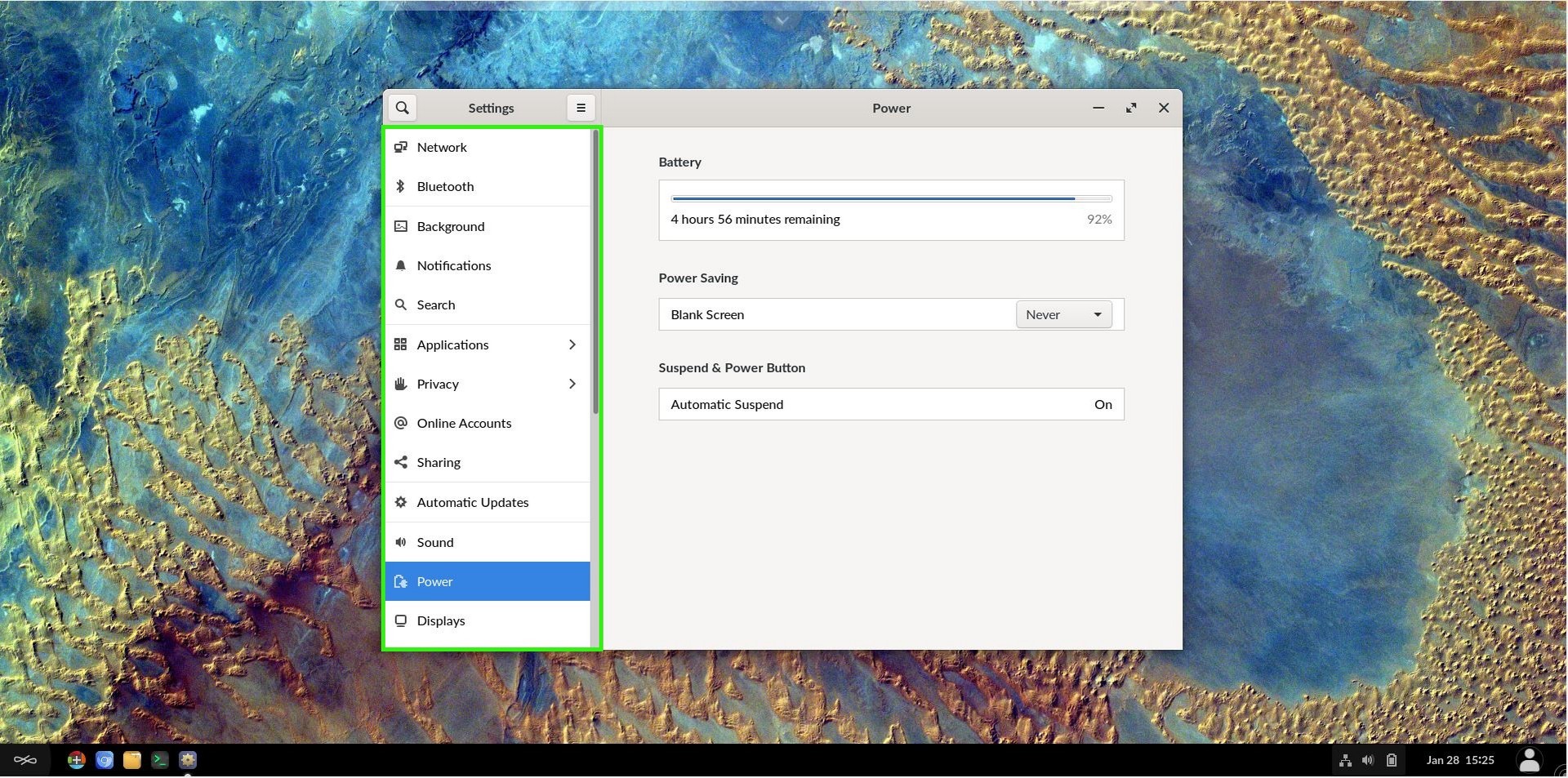
Scroll until you see Users option
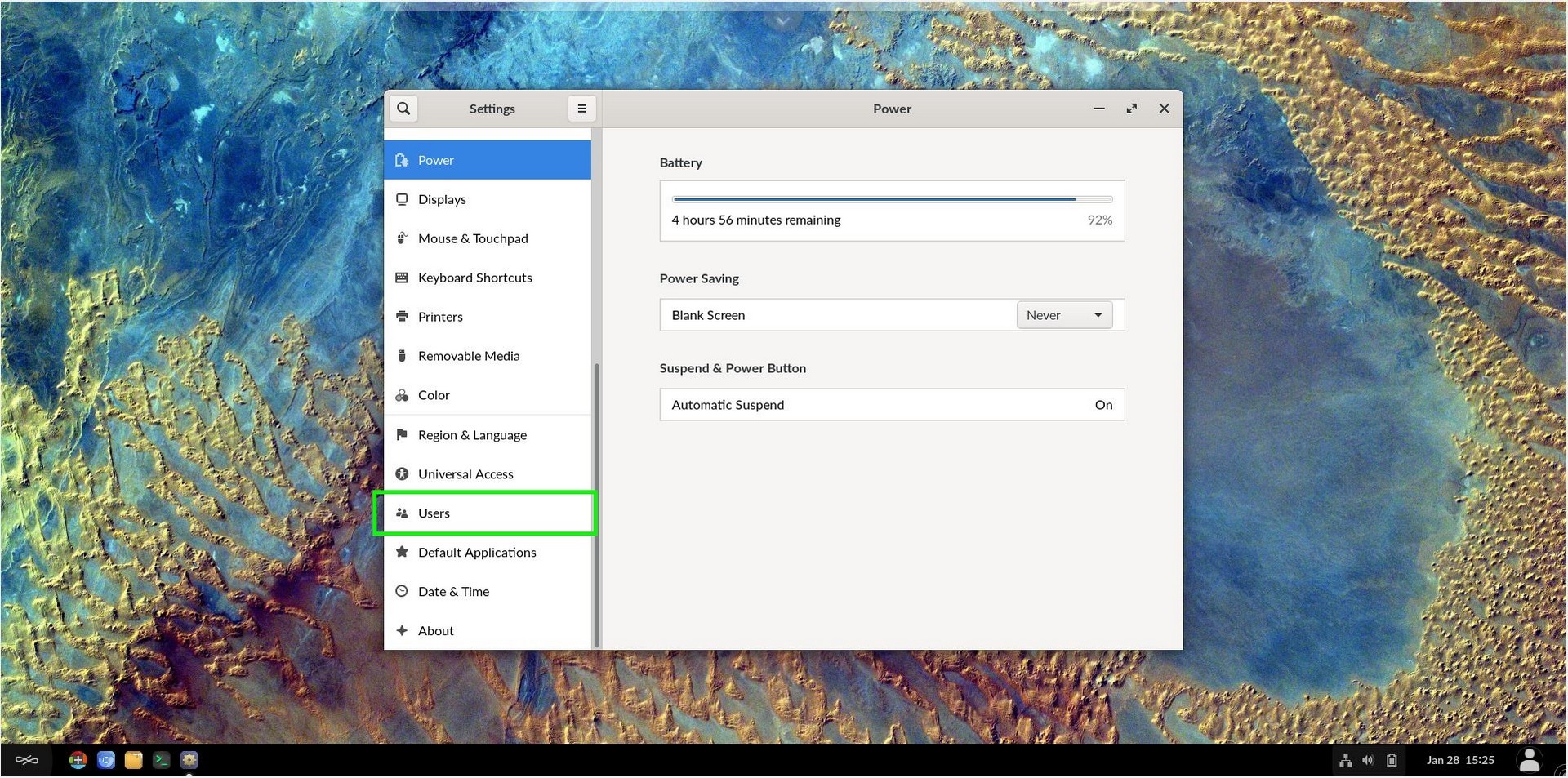
Select the Users setting
Click the Unlock button
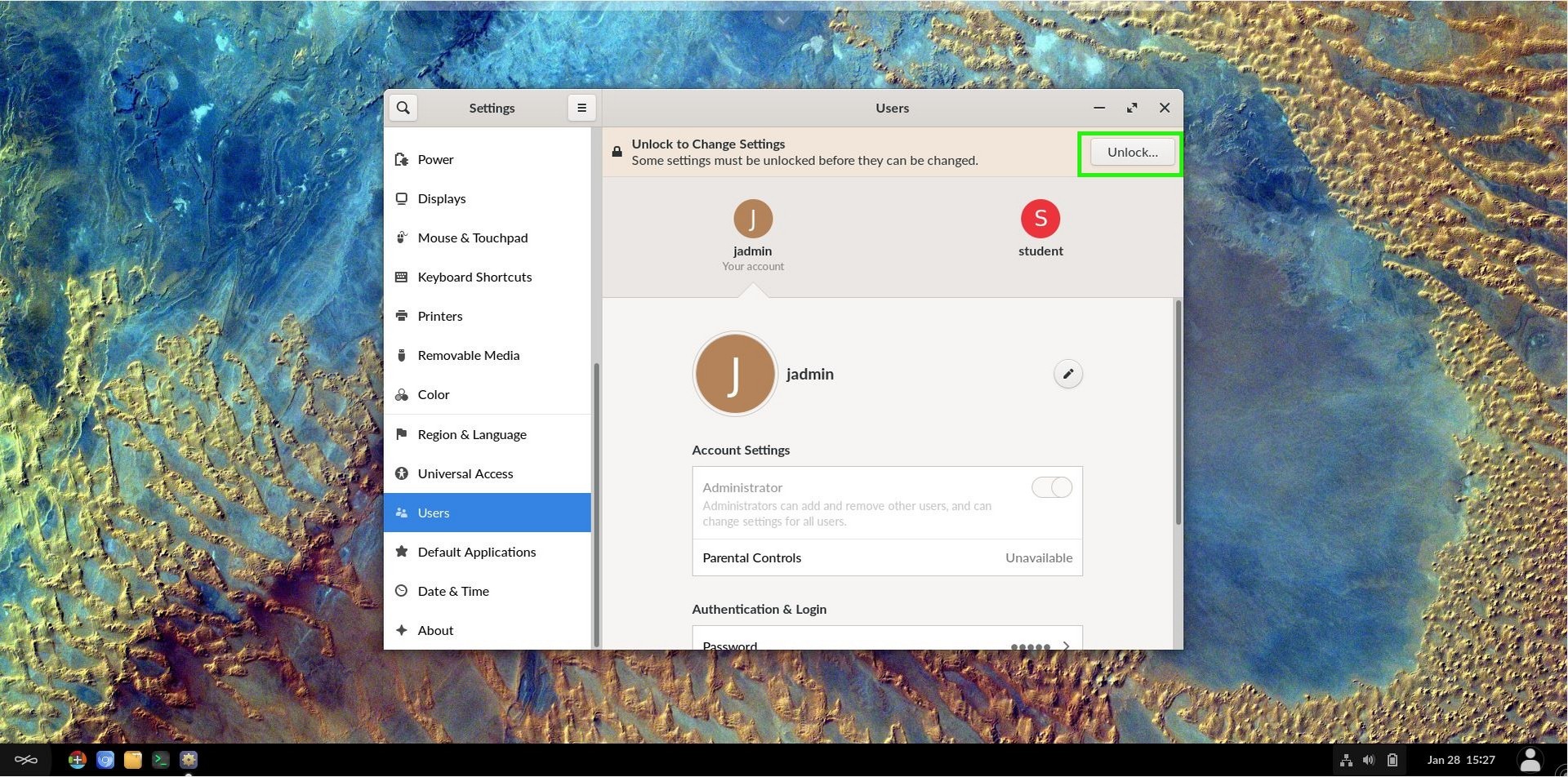
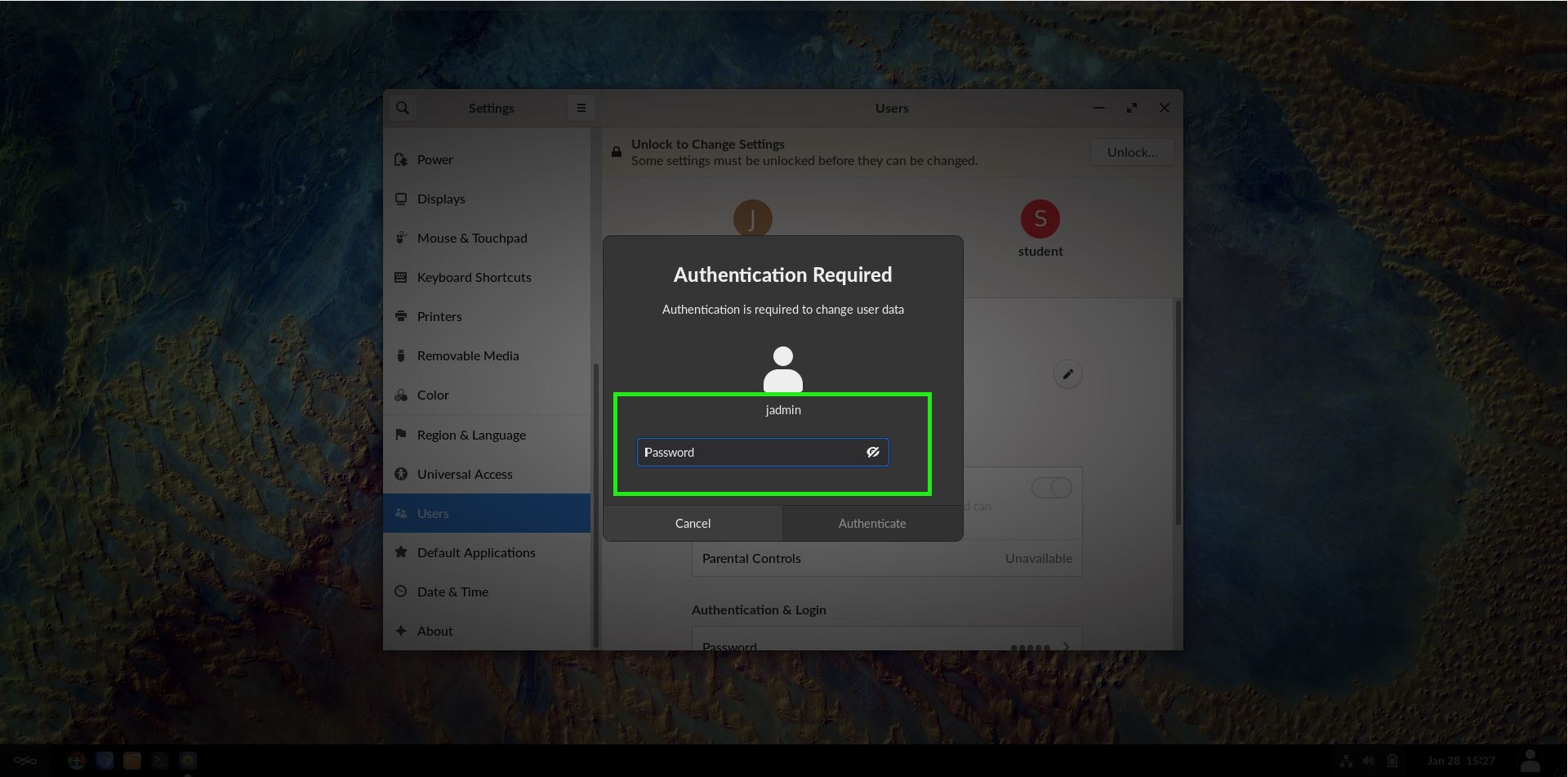
Enter jadmin credentials
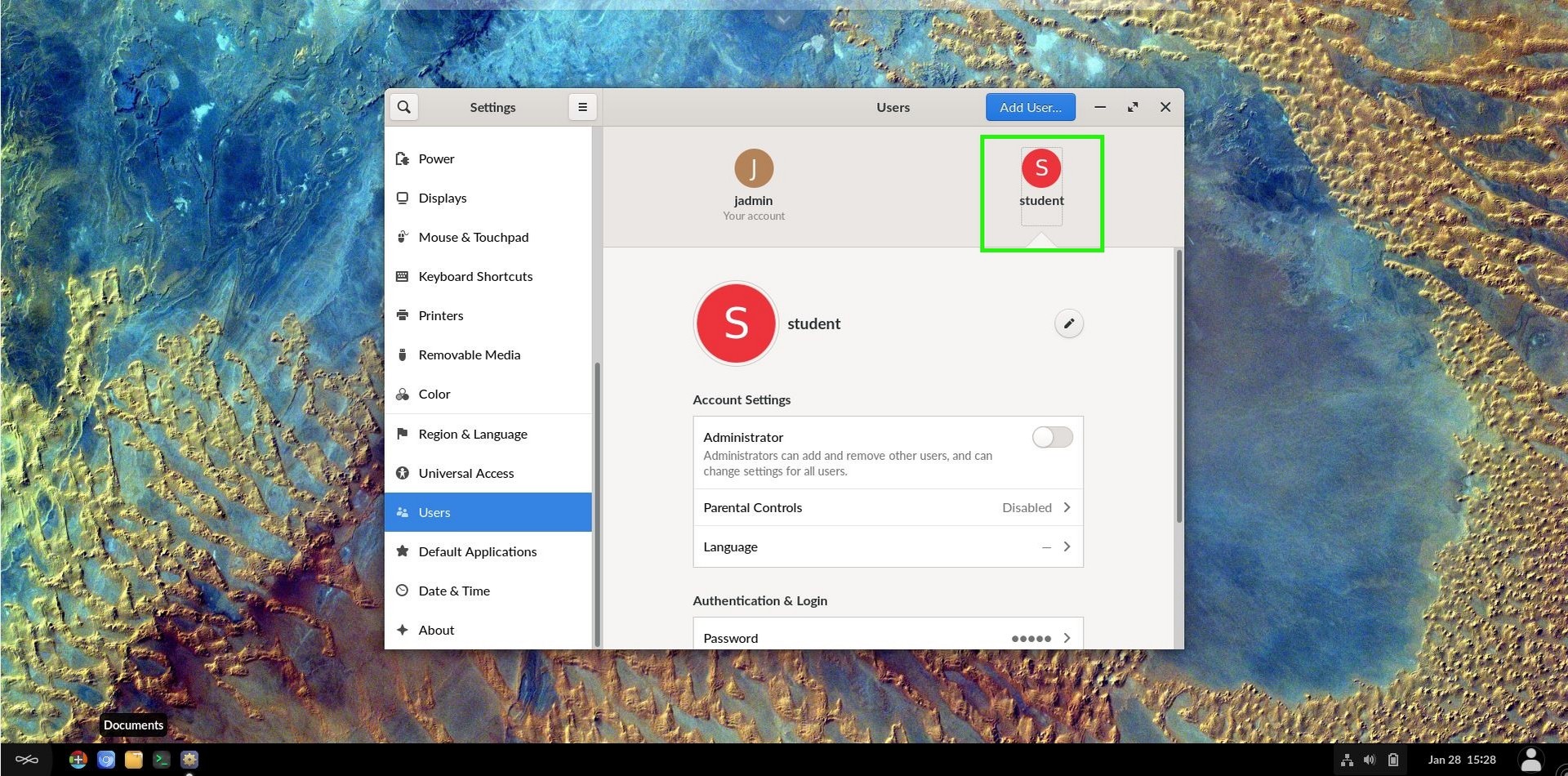
Select the user whose password you want to change
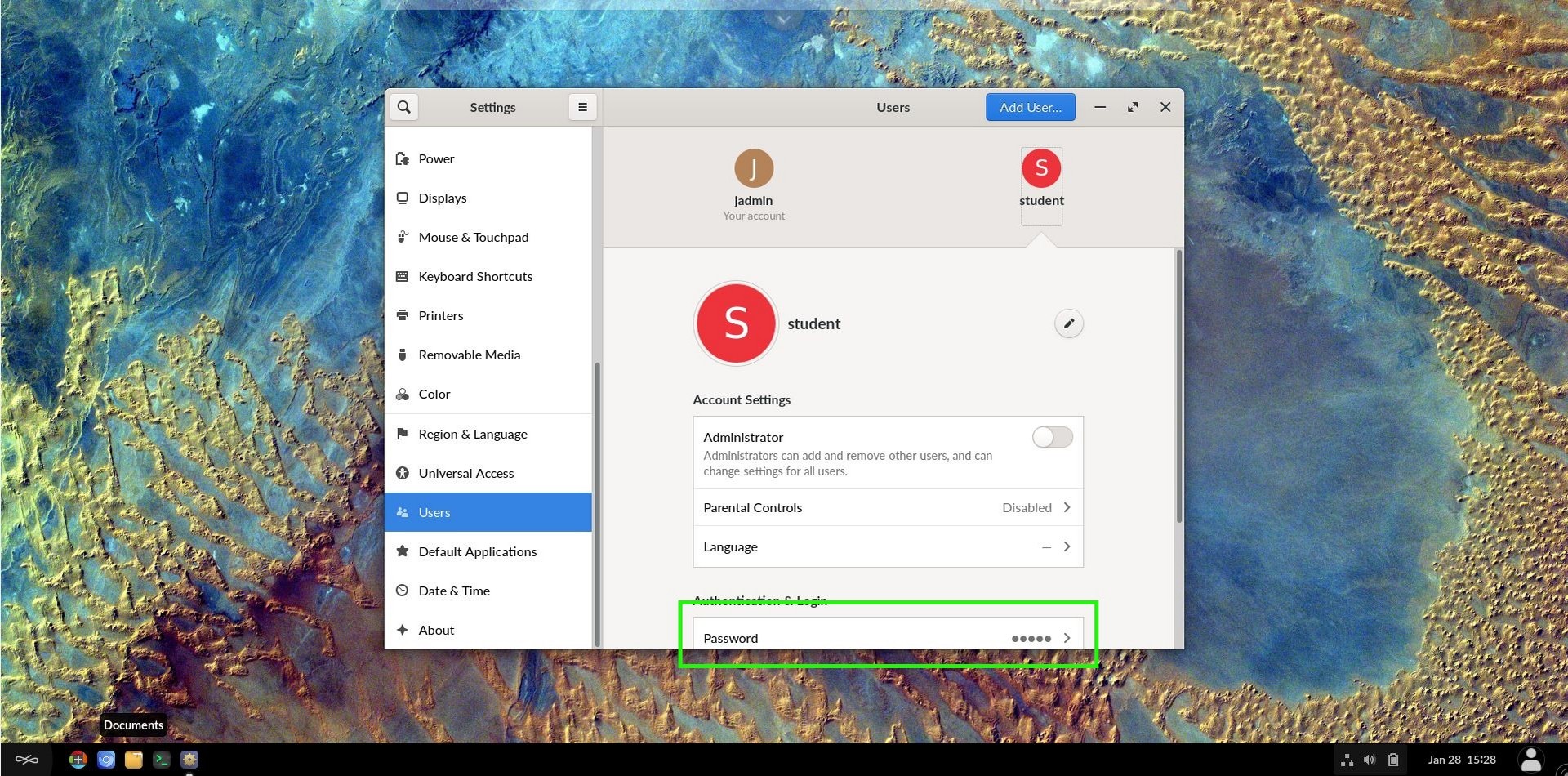
Click on the password option
Make sure the “Set a password now” radio button is selected
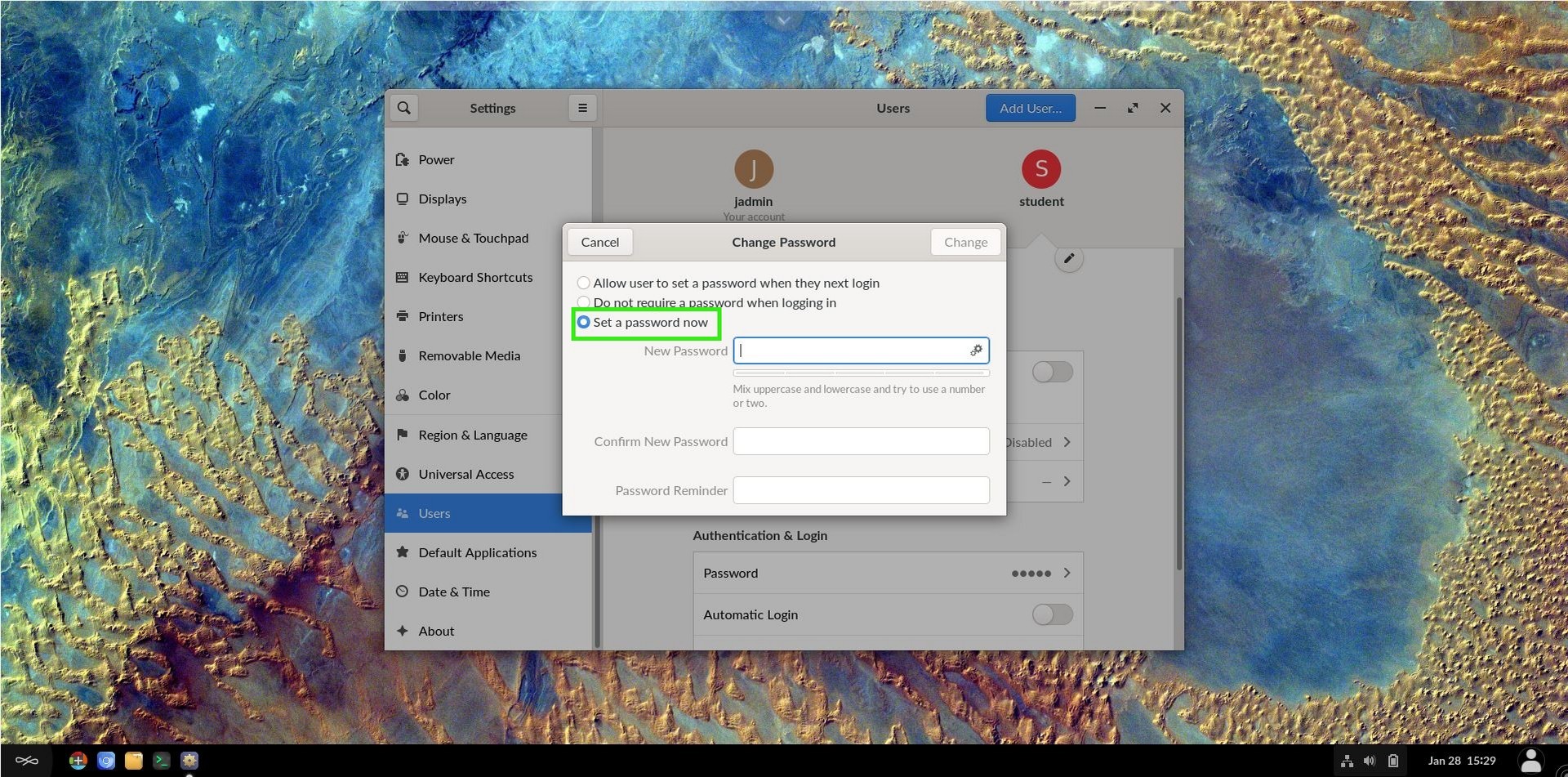
Enter the new password in both the new and confirm field
Enter a password hint if desided
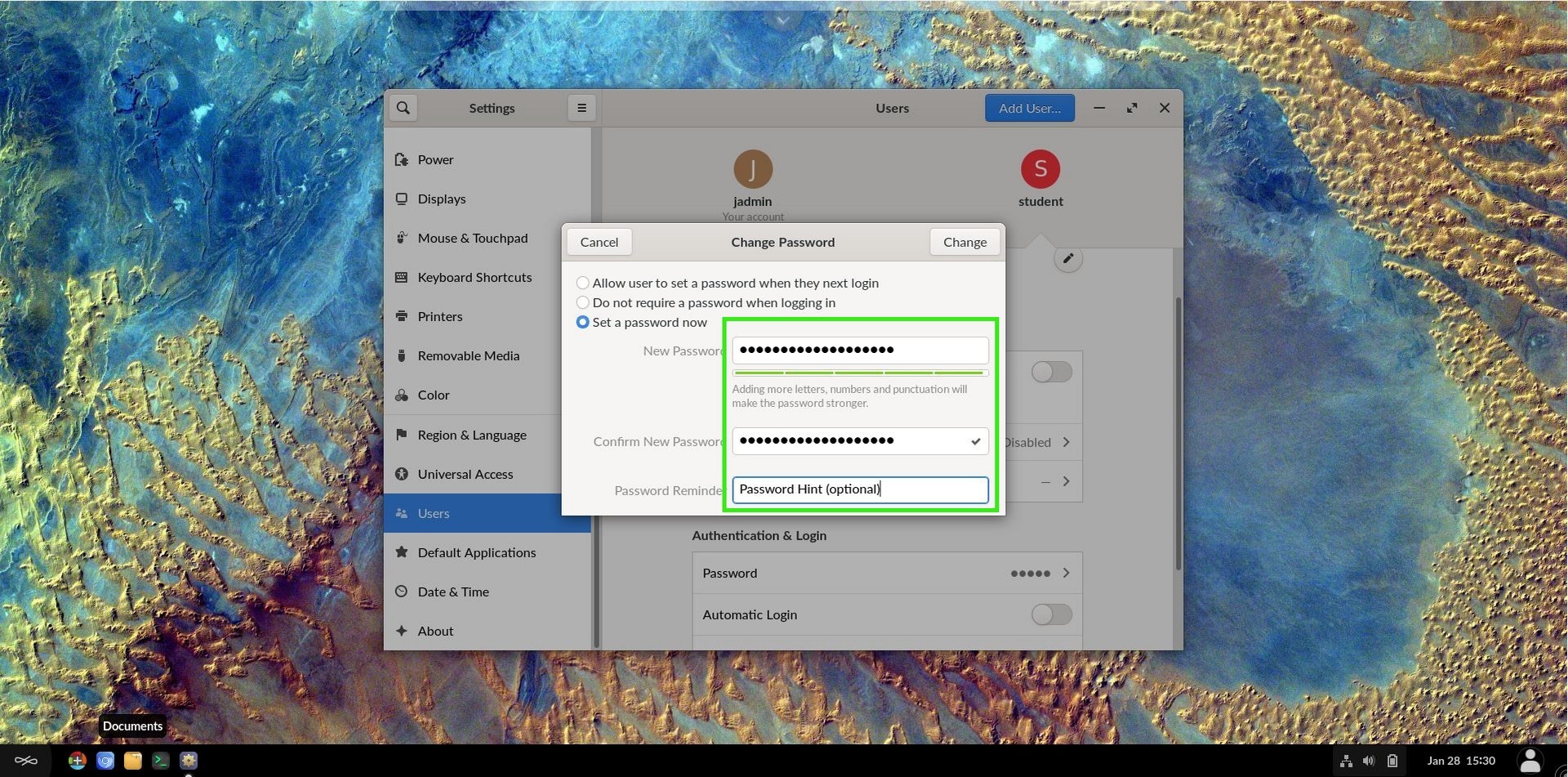
Click the change button.
Close the settings menu