How to run setup_wifi
This guide will help you learn to run the setup_wifi.sh script when deploying a fresh securebook
To accomplish this process, you will need:
WP Securebook
Red (Wi-Fi) Docking Station
Wireless Network SSID and Password
To run the setup_wifi.sh script and get connected to a wireless network, follow these steps:
Dock the Securebook to the Red Docking Station
Make sure to be in range of the Wireless Network
Power On the Securebook
Log in to the jadmin account
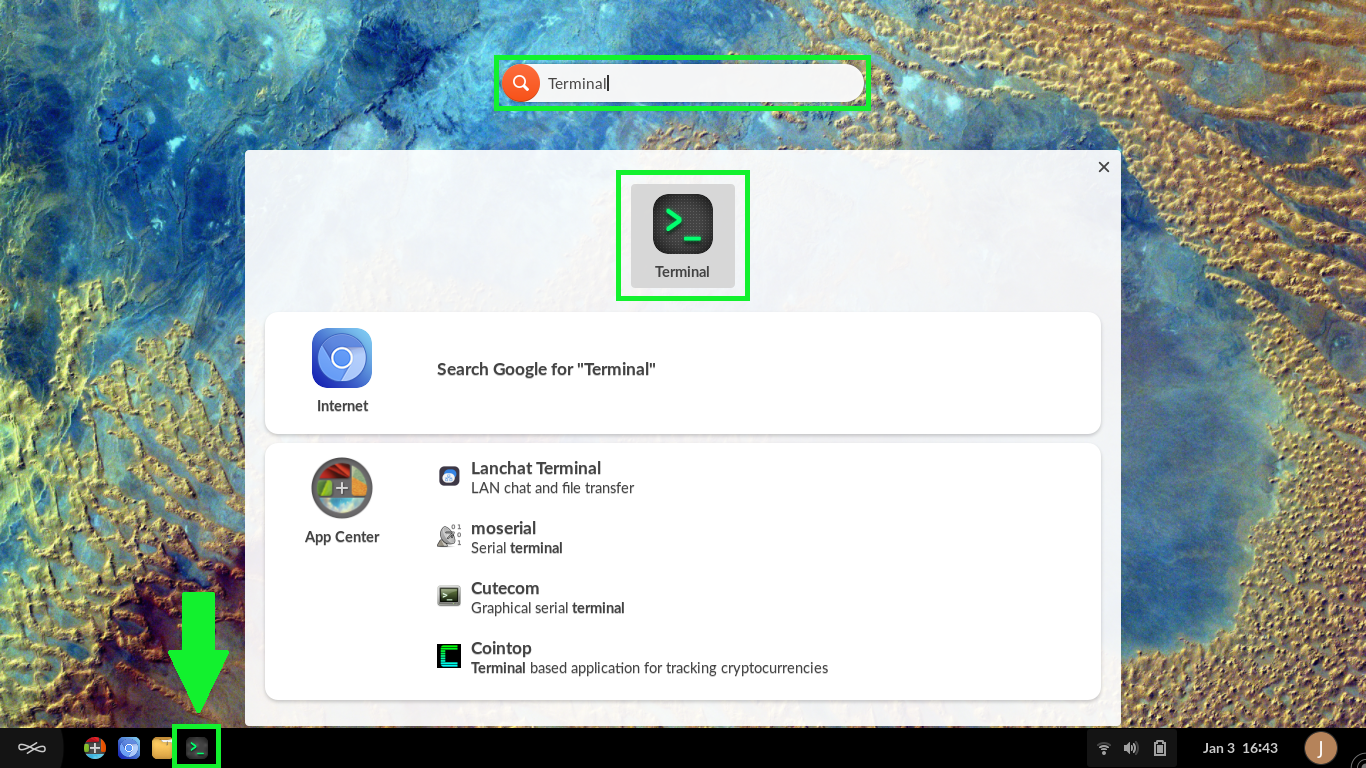
Open the Terminal Application (Click Icon on the Desktop or Type ‘Terminal’ in the Searchbar)
Run the following command:
1 sudo bash setup_wifi.sh
Follow the On-Screen prompts:
Type the SSID of the Wireless Network
Press Enter
Type 1
Press Enter
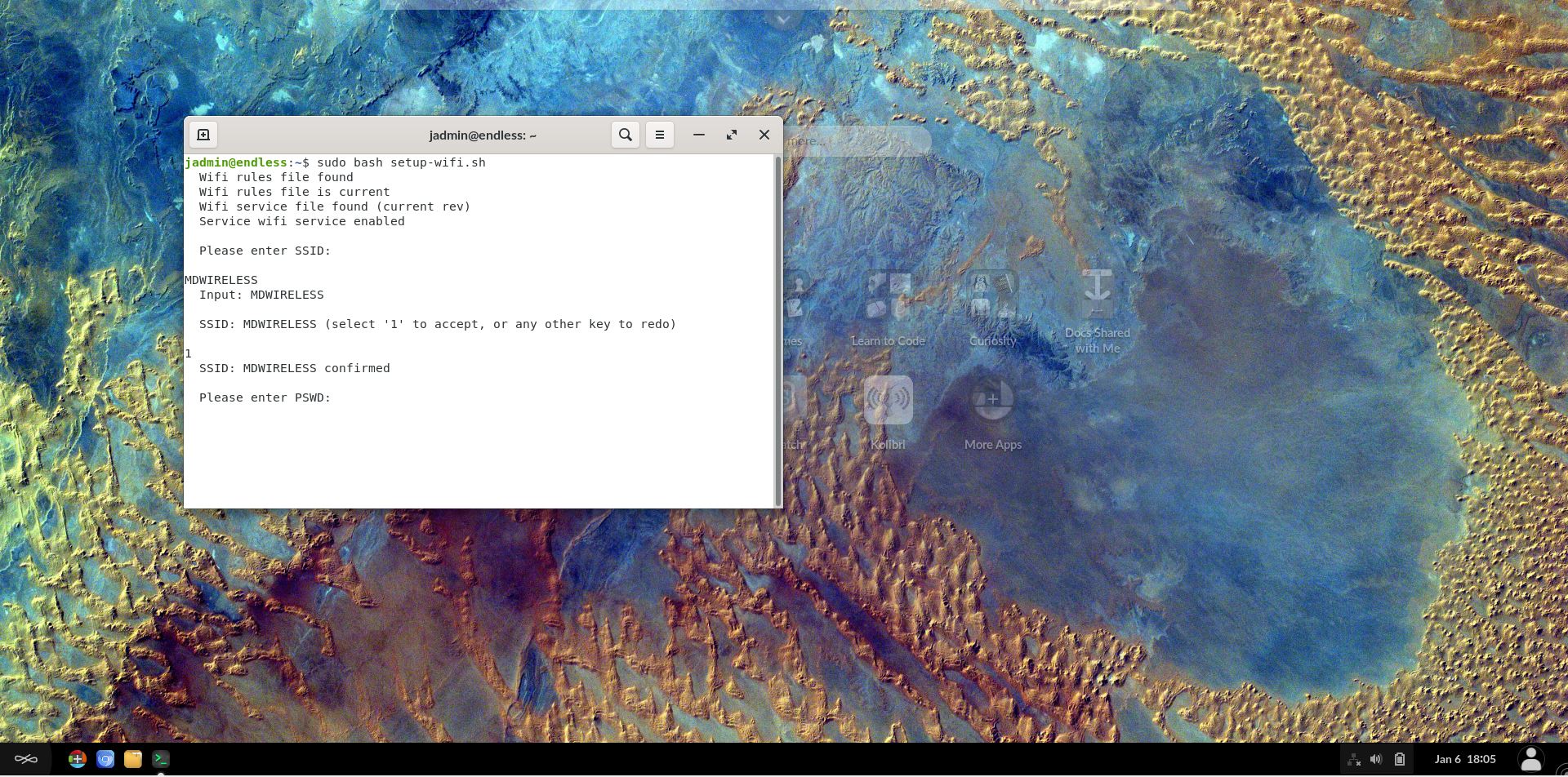
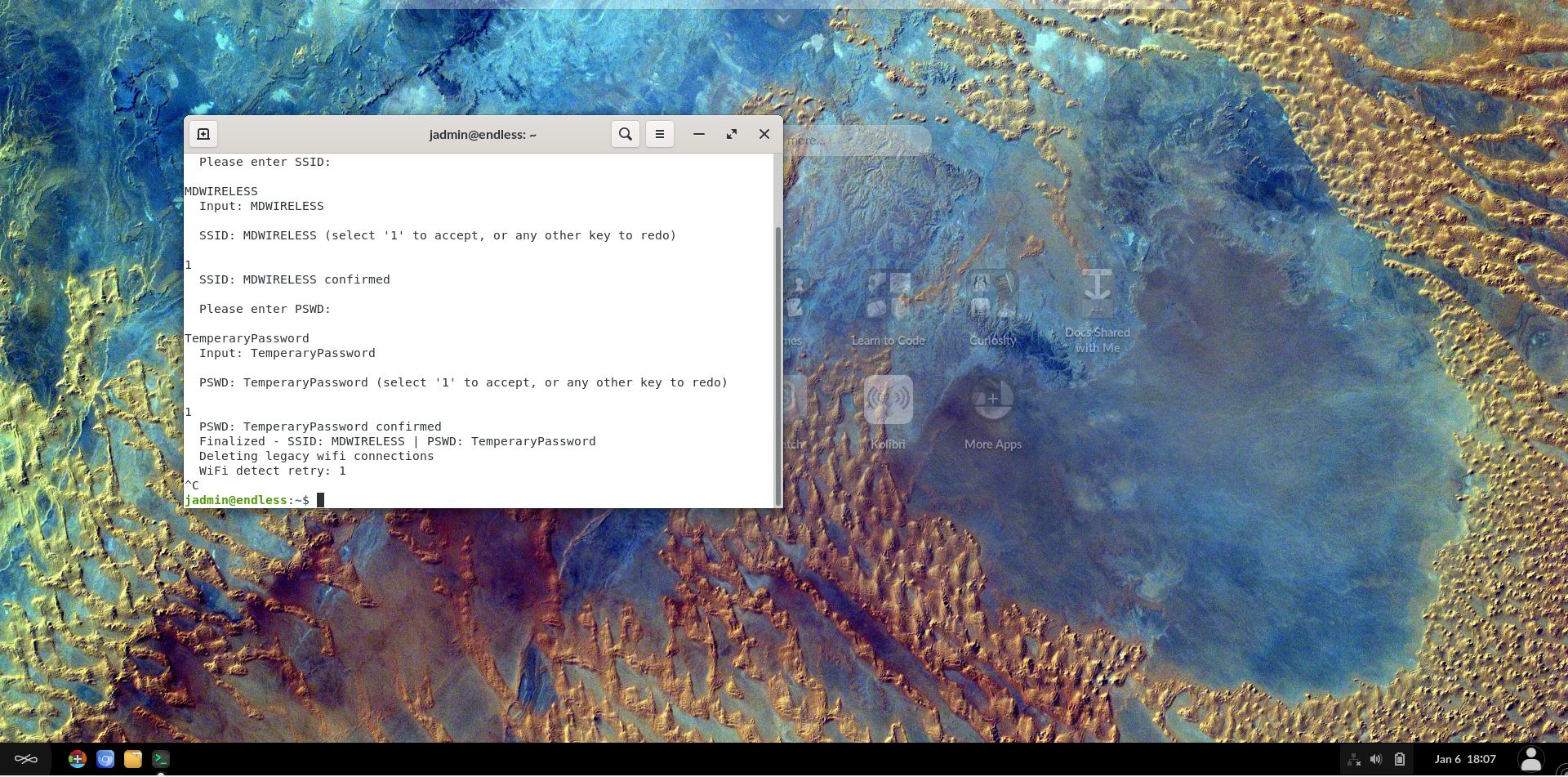
Type the Password of the Wireless Network
Press Enter
Type 1
Press Enter
Note
Once you have entered all the information, the script should conclude.
Once the script concludes, close the Terminal Application.
Note
If the script is run out of range of the wireless network then the Securebook will need to be Powered Off then On again when in range to complete the process.
In the event that information is incorrect when entered, was incorrectly entered or changed at a later date, Power Off the Securebook and repeat this process from step 1 with the new and/or correct information.