Adding Application Icons to the Desktop
This guide will help you learn how to add app icons to the desktop for ease of use
To accomplish this task, you will need:
WP Securebook
To add icons to the desktop, follow these steps:
Log into an Endless OS user account
Right click on an empty space on the desktop
Choose “Add App” from the list of options provided

Select the application you want from the App Center

Click the “Add to Desktop” button

Close the App Center and Check the desktop for your new icon
Note
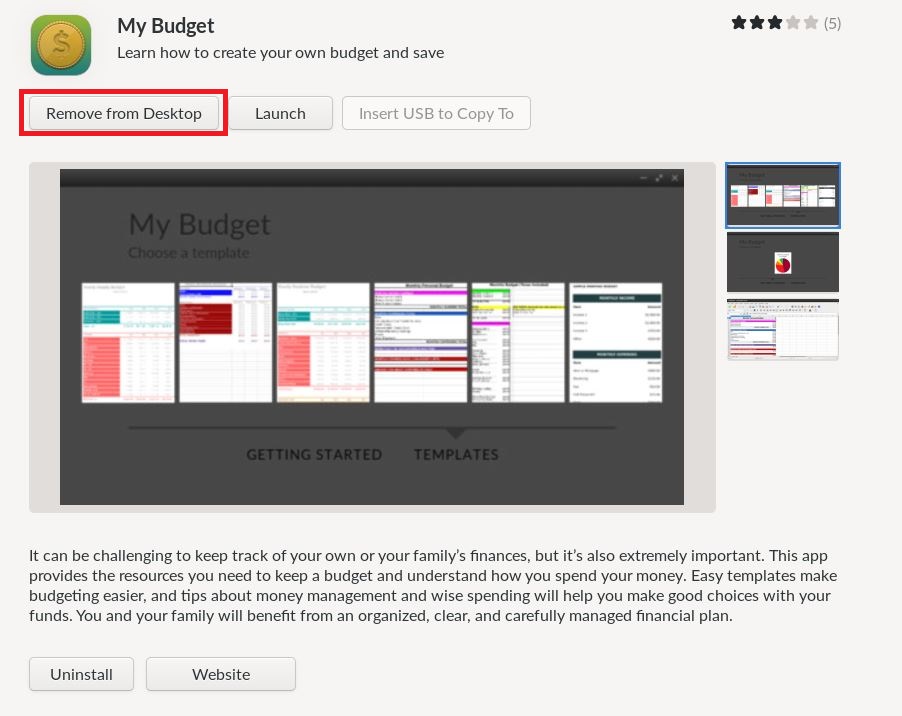
Once an Application is added to the desktop, it can also be removed from the same page we added it on in step 5 by clicking the “Remove from Desktop” button