Creating and Editing New Users
This guide will help you learn how to create, delete, and edit Endless User accounts using the Endless User Settings UI.
To accomplish this task, you will need:
WP Securebook
Admin Credentials
Creating New Users
To Create a New Endless User Account, follow these steps:
Log into the jadmin account.
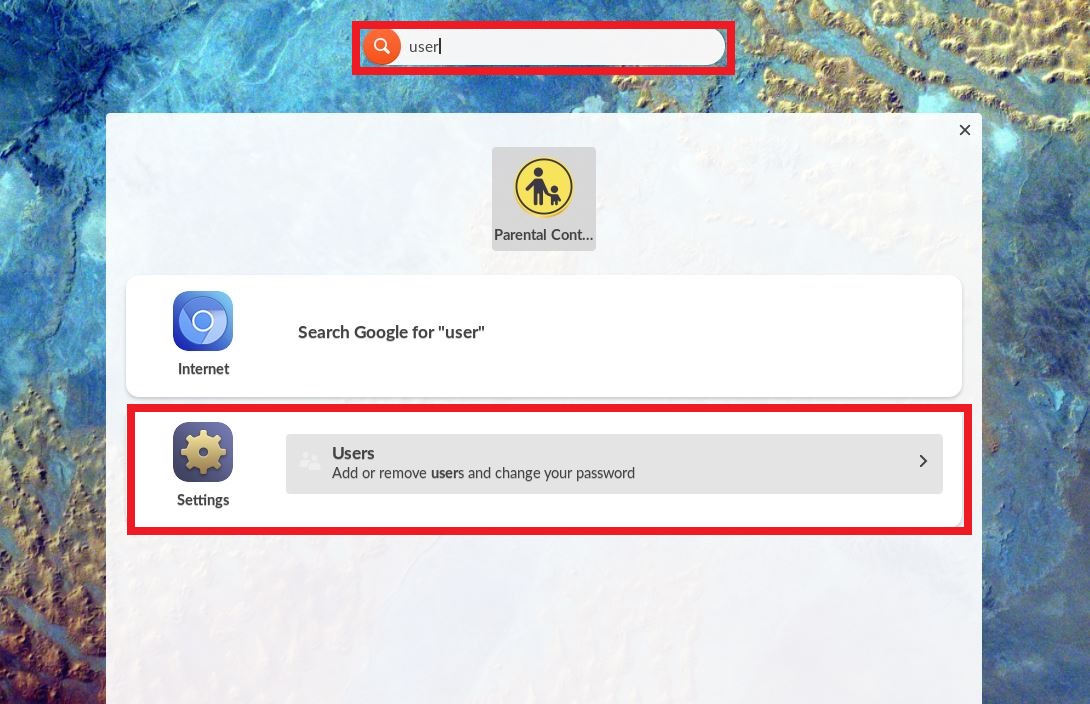
In the Desktop searchbar at the top, type “user” and select the User Settings option
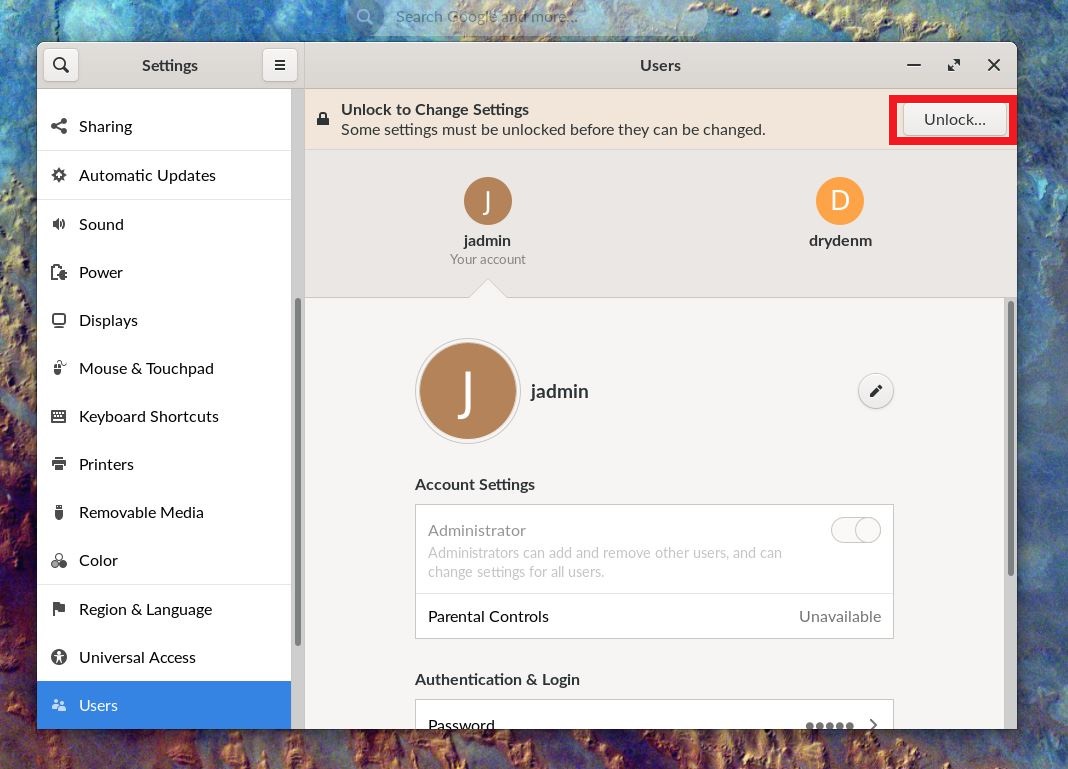
Click the “Unlock…” Button
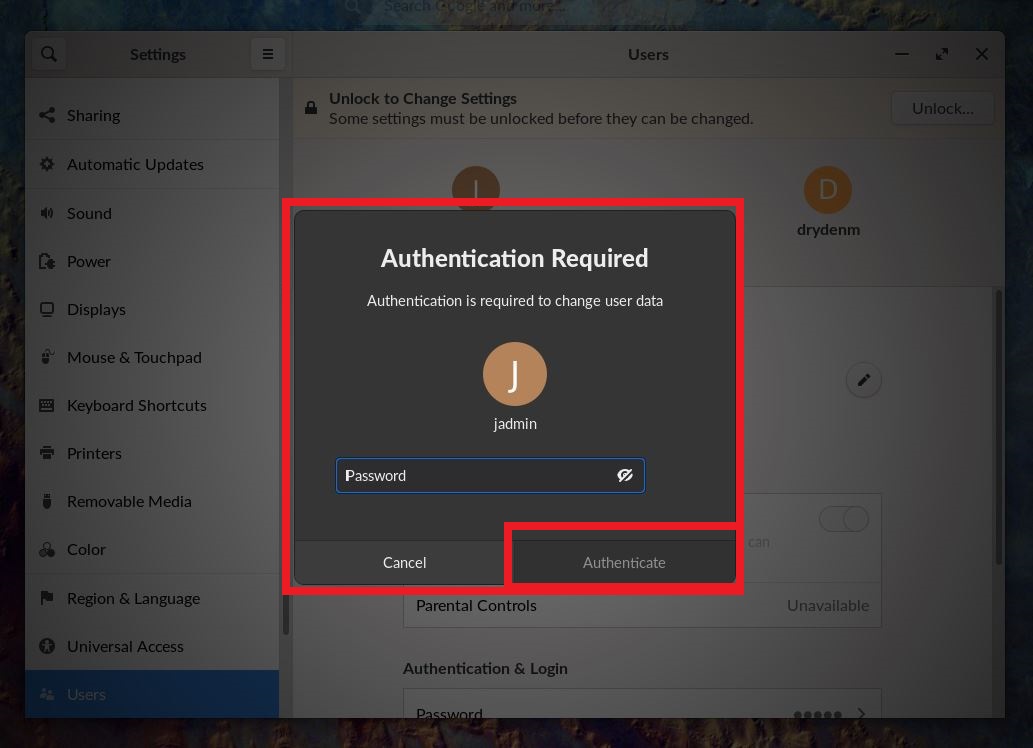
Enter the jadmin password and then press the “Authenticate” button
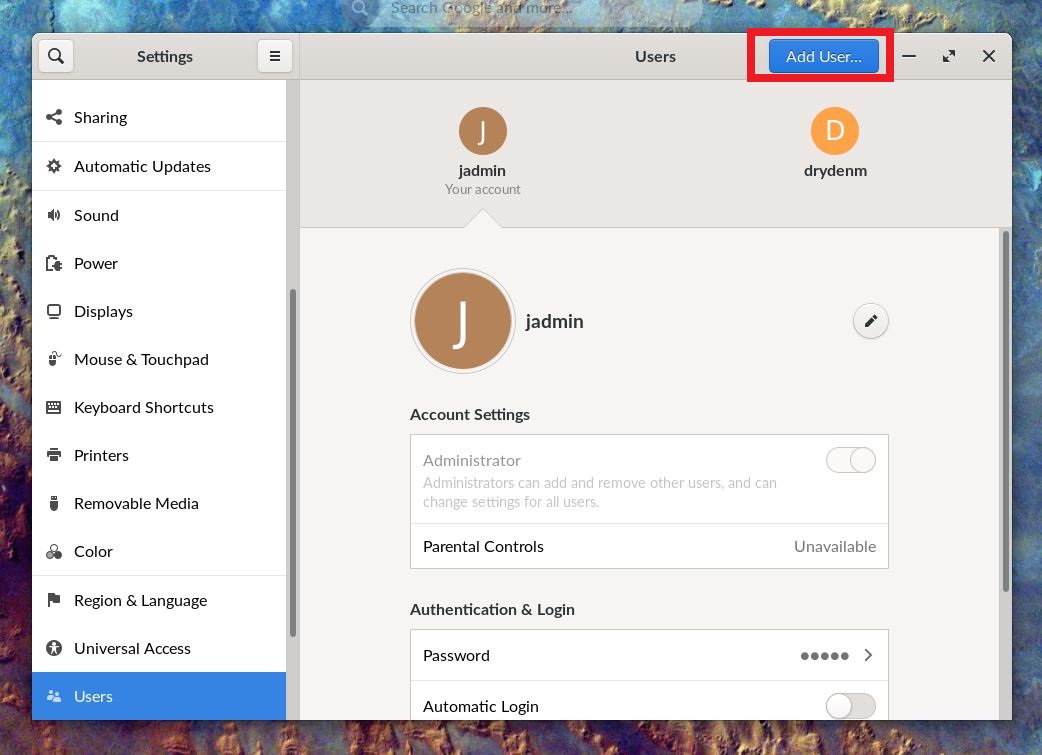
Click the “Add User…” button
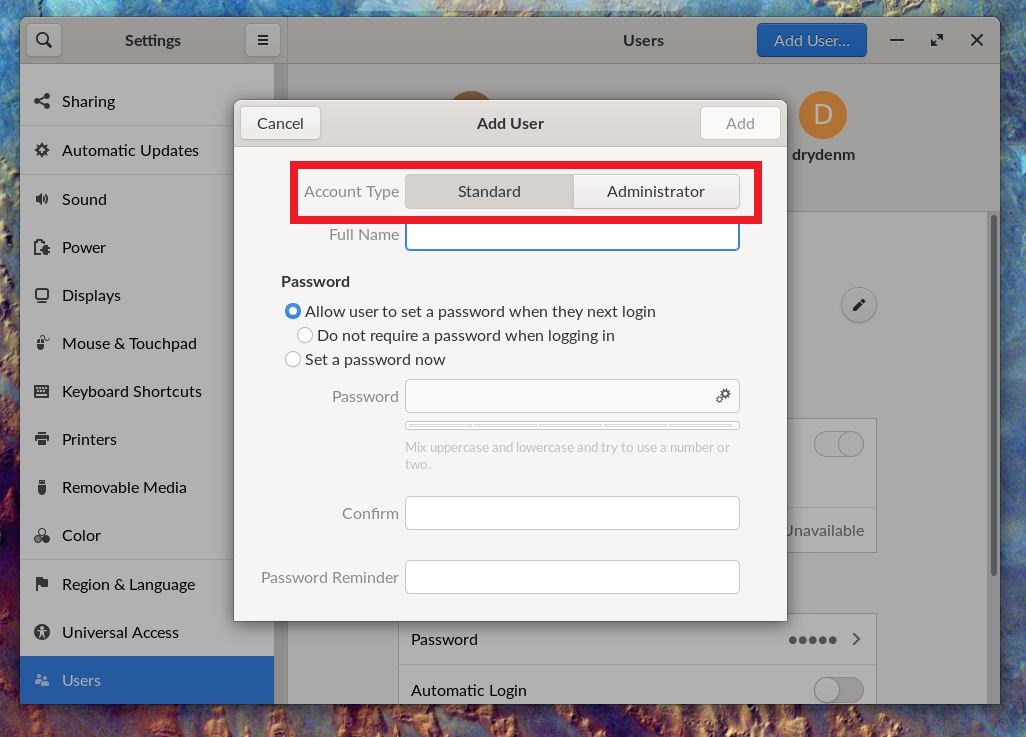
If (and only if) you want this user account to have admin access (not advised!), click the Administrator button
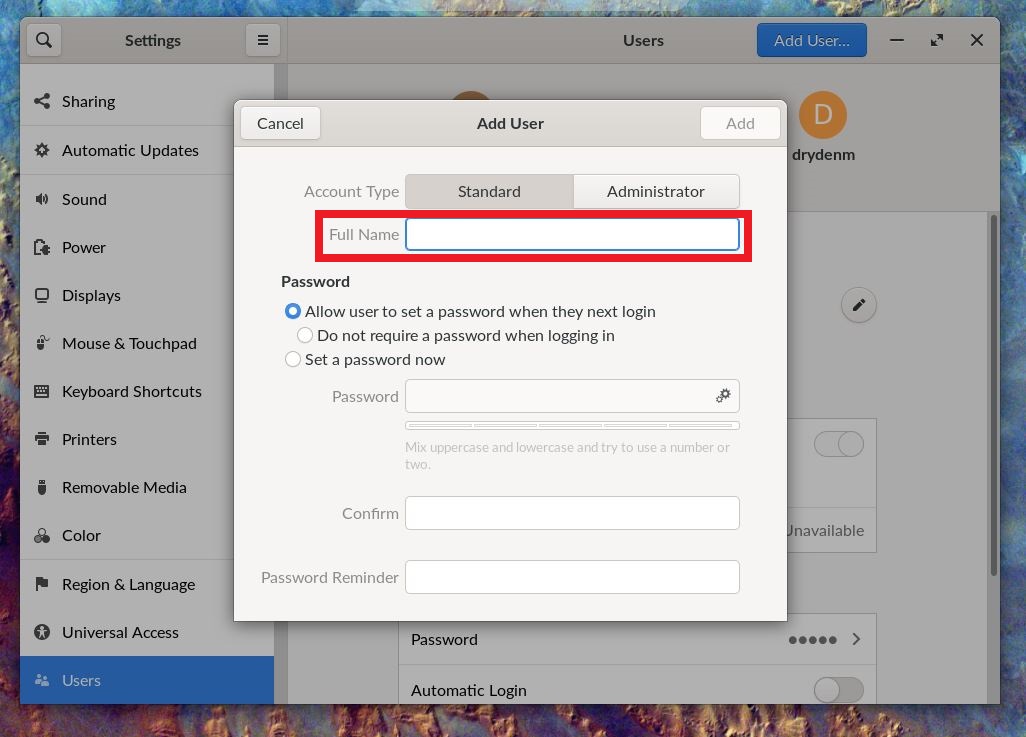
Enter the Name of the new user account
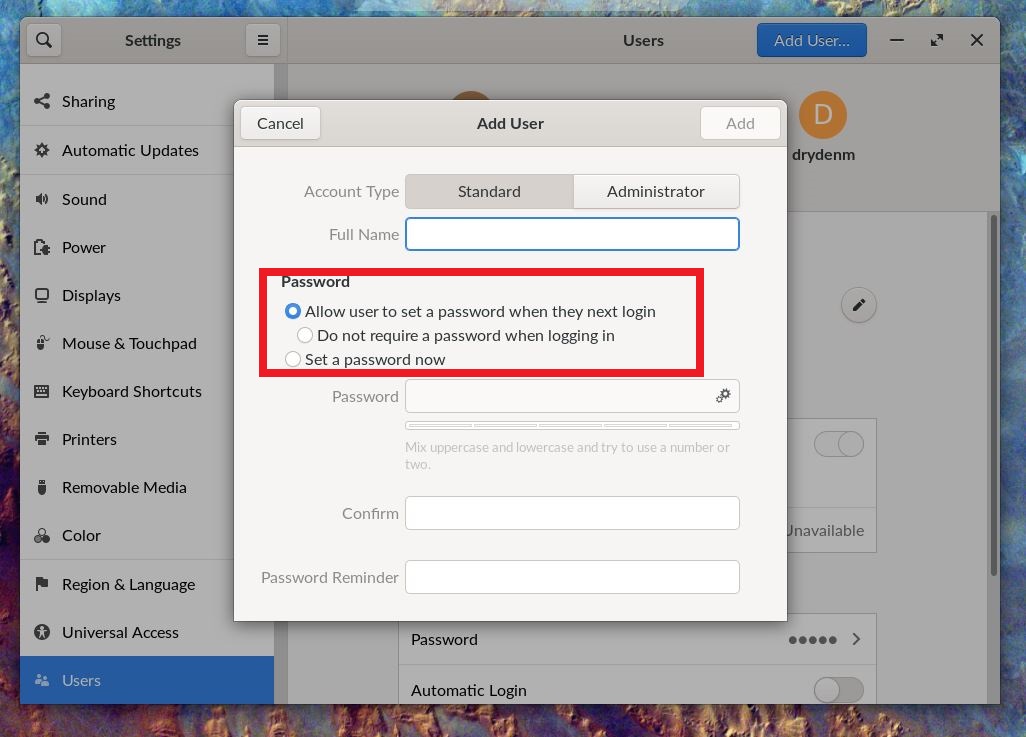
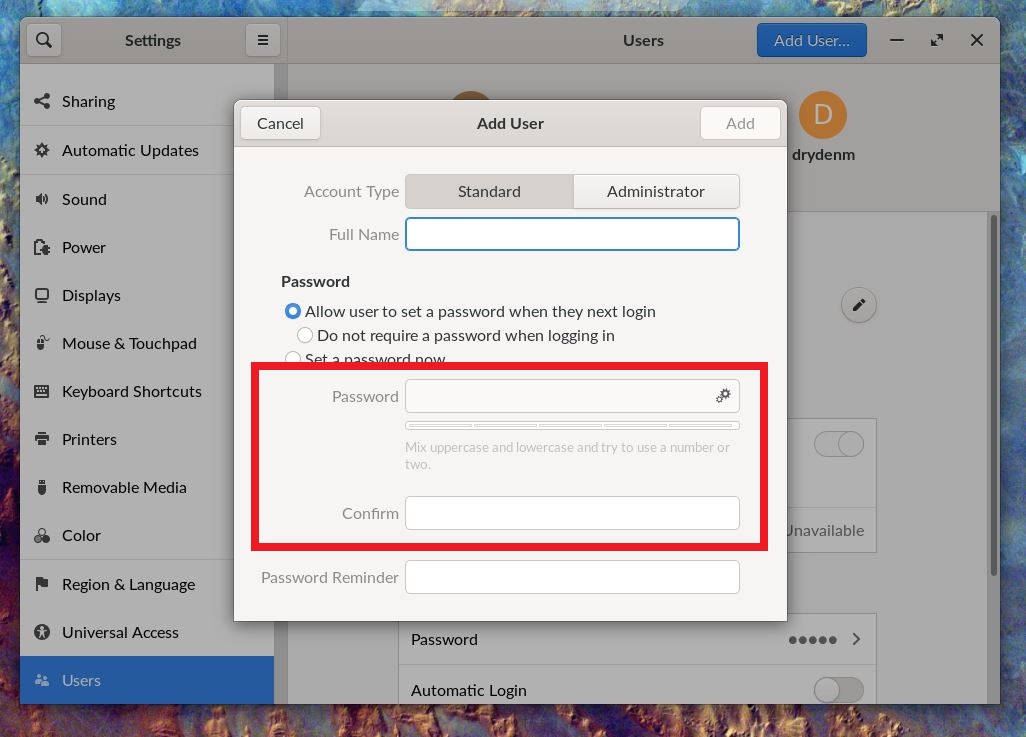
Select which Password option you want from the options listed
Note
If you want the user to set the password the next time they login, select the first option
If you want the user account to have no password at all, select the second option
If you want to manually set the account password, select the third option (recommended)
If you selected option three to manually set the password, enter it now in the Password bar
Enter the password again in the confirm bar
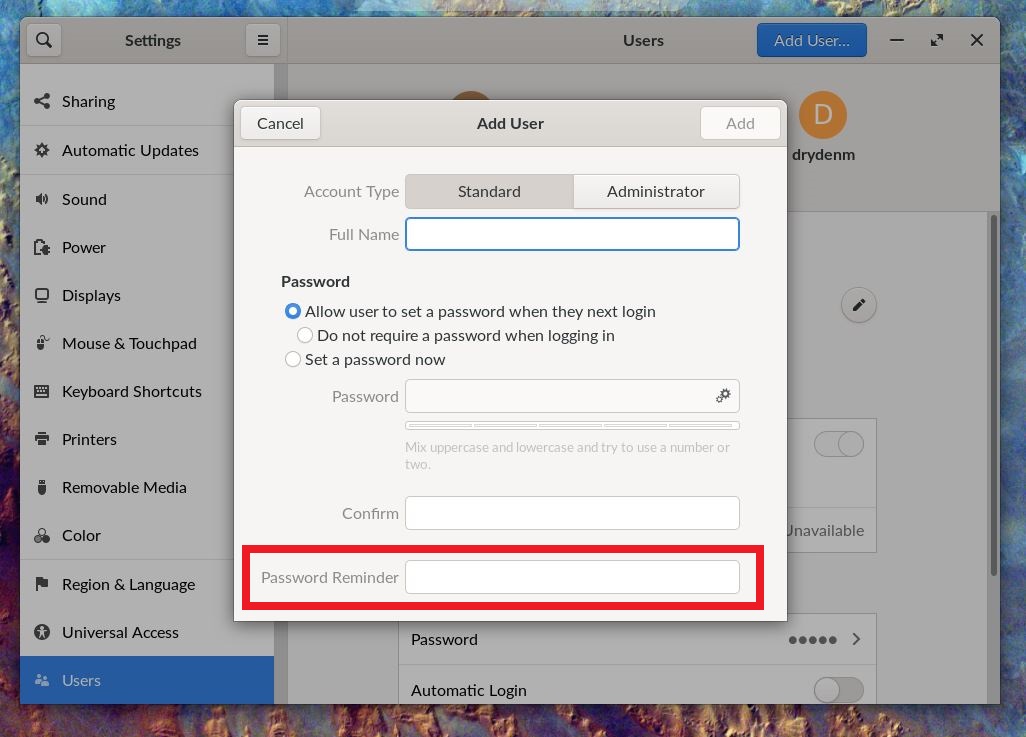
Enter the password hint (blank will leave the profile with no password hint)
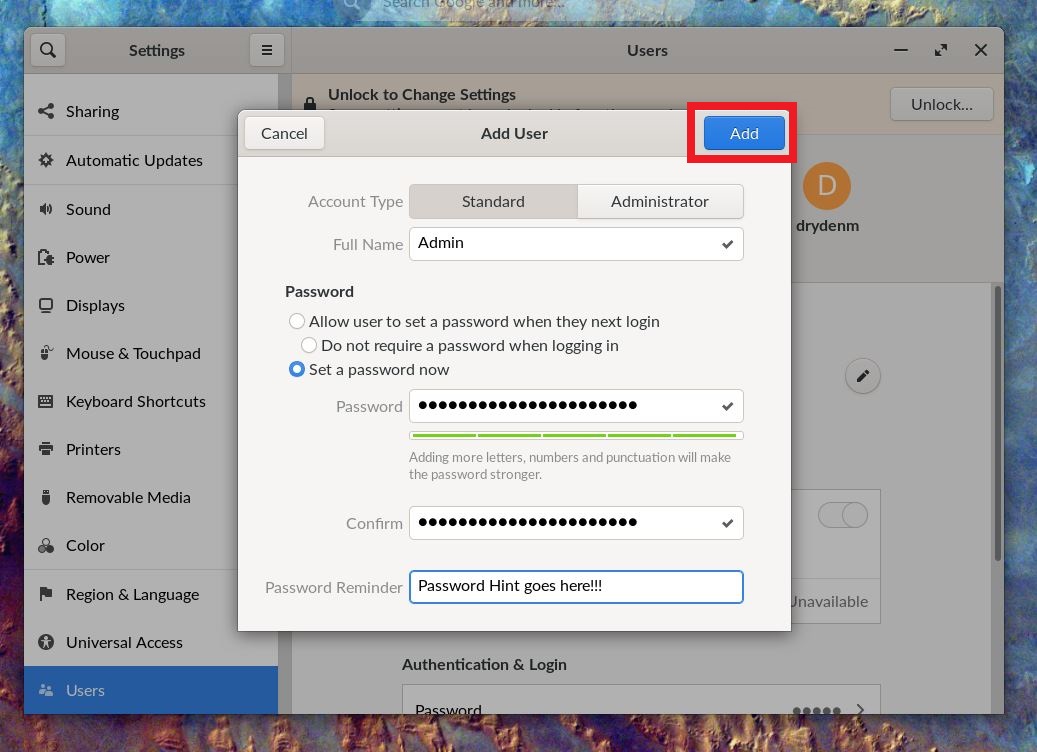
If you are done entering information, click the “Add” button
Deleting Users
To Delete an Endless User Account, follow these steps:
Log into the jadmin account.
In the Desktop searchbar at the top, type “user” and select the User Settings option
Click the “Unlock…” Button
Enter the jadmin password and then press the “Authenticate” button
Click the user account you wish to remove

Scroll down until you see the “Remove User…” button and click it
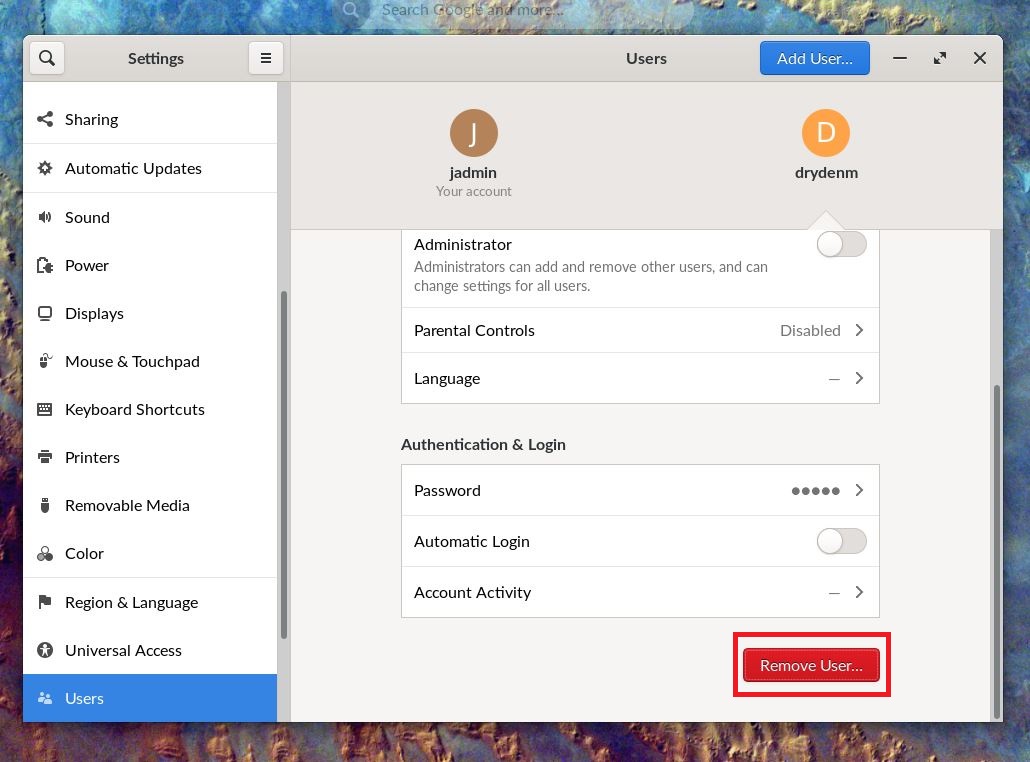
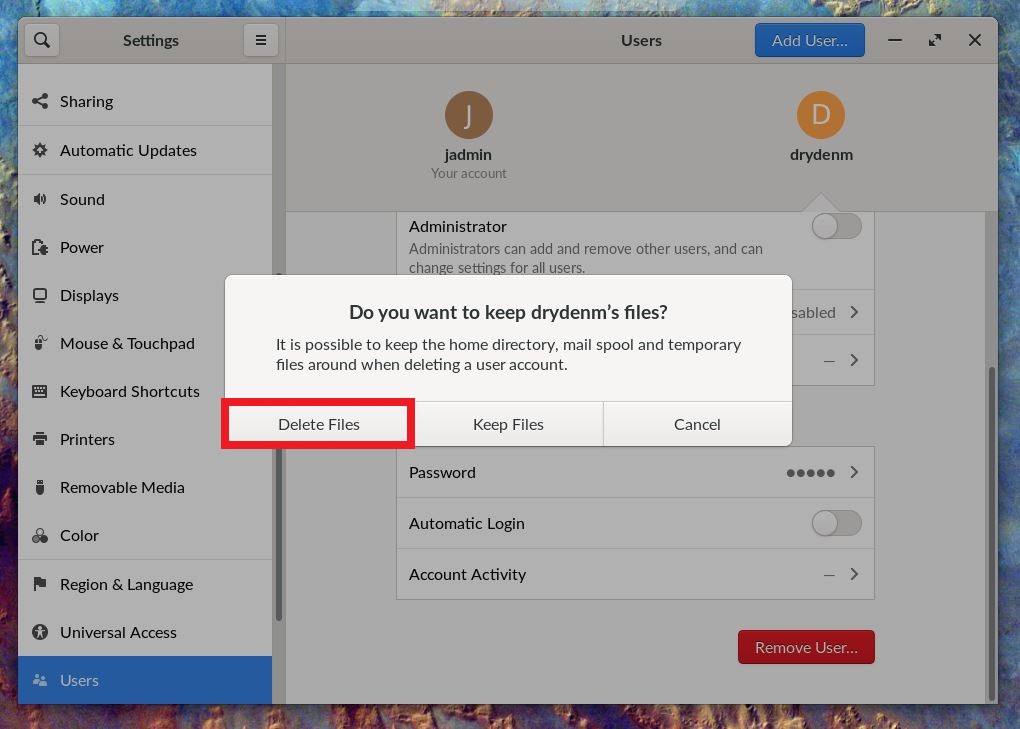
If you want to keep the user files, select the “Keep Files” button, otherwise select the “Delete Files” button
Note
Keeping the deleted users files will allow you to access them in the /home directory of the file explorer.
Editing User
To Edit the info of an Endless User Account, follow these steps:
Log into the jadmin account.
In the Desktop searchbar at the top, type “user” and select the User Settings option
Click the “Unlock…” Button
Enter the jadmin password and then press the “Authenticate” button
Select the user account you wish to edit
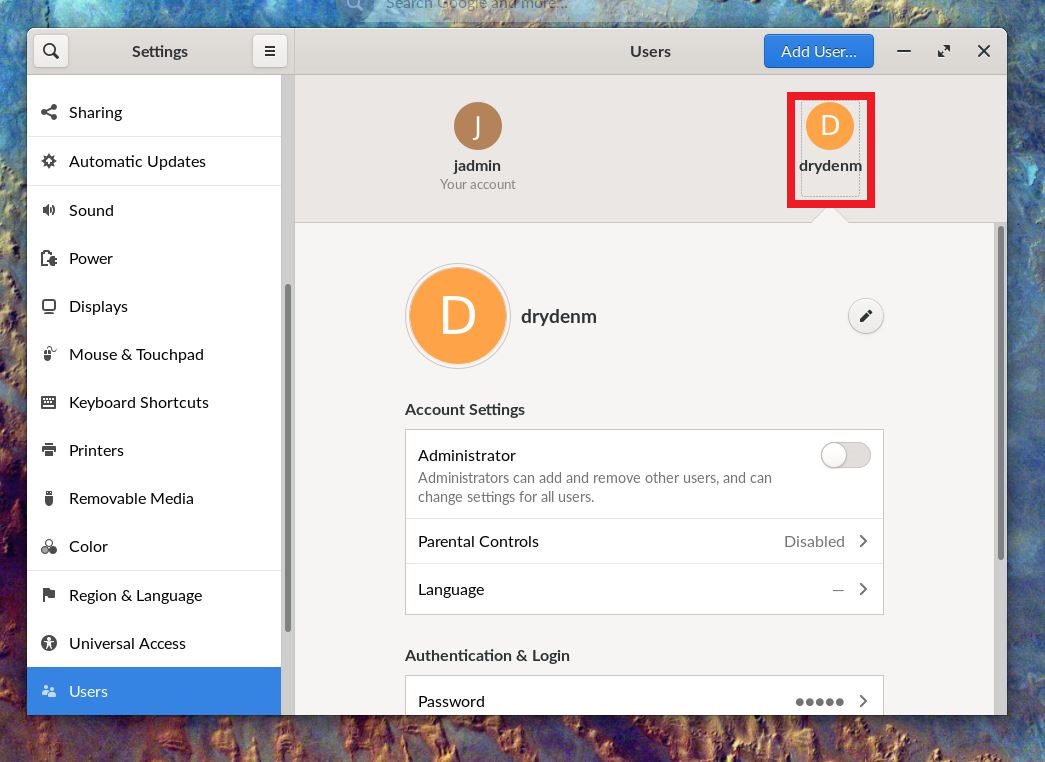
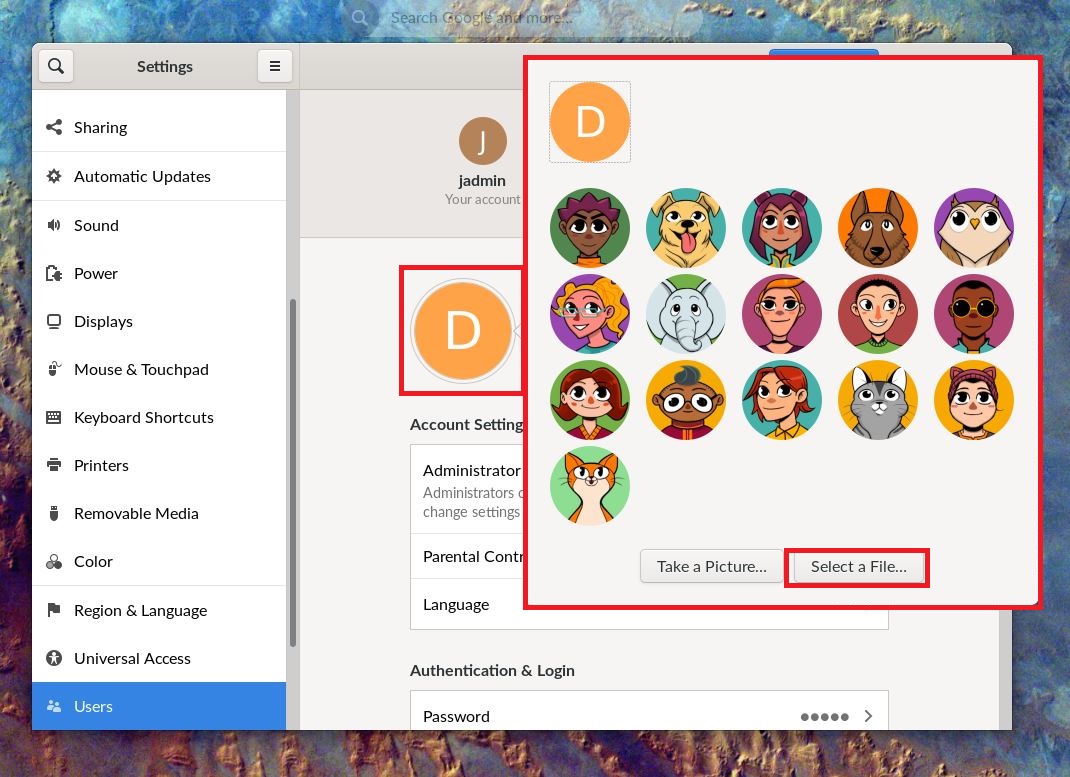
To edit the profile picture, click the picture and select a new image to use
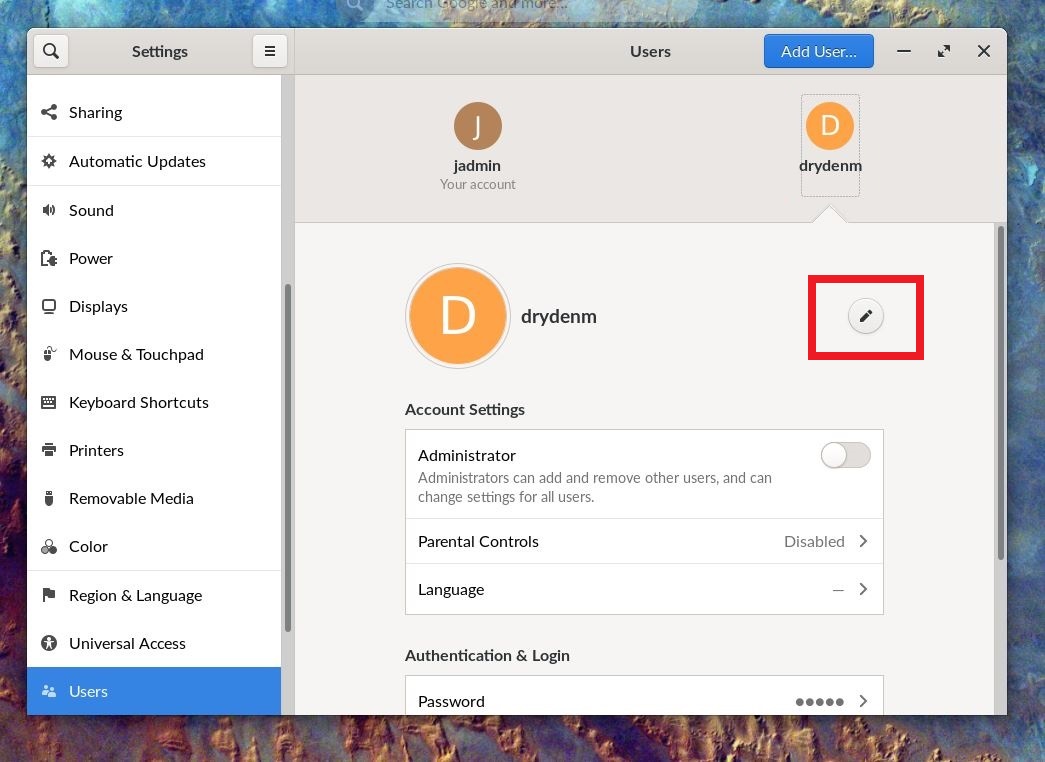
To edit the profile name, click the pen icon to the right of the account’s current name and profile picture
To edit the Administrator priviledges, click the “Administrator” slide toggle (Blue means on, Grey means off)
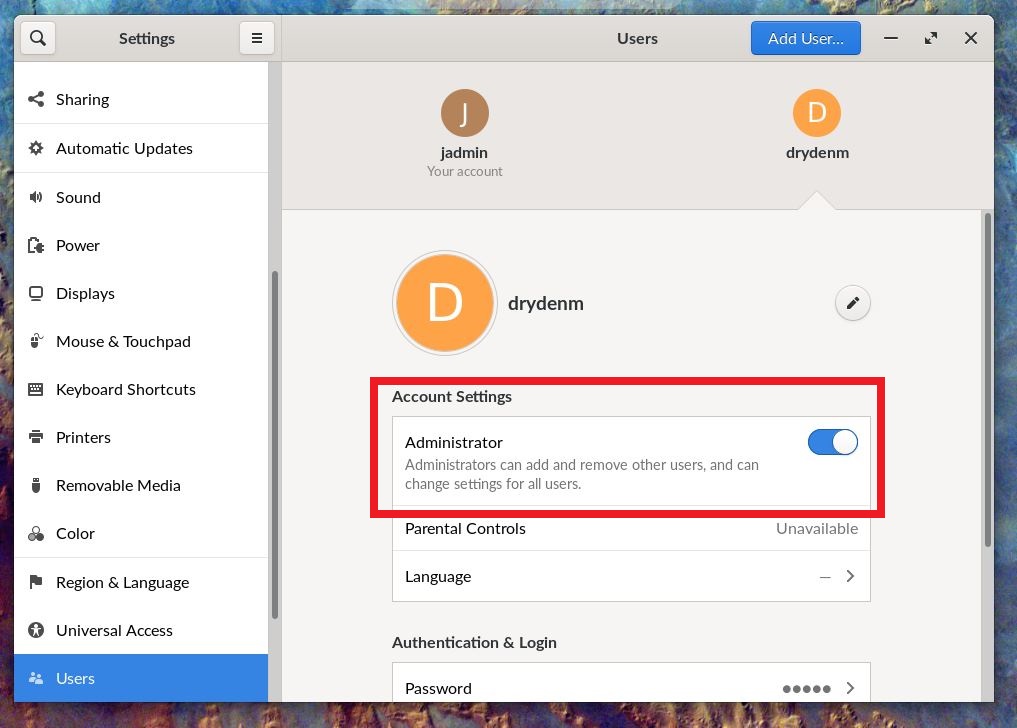
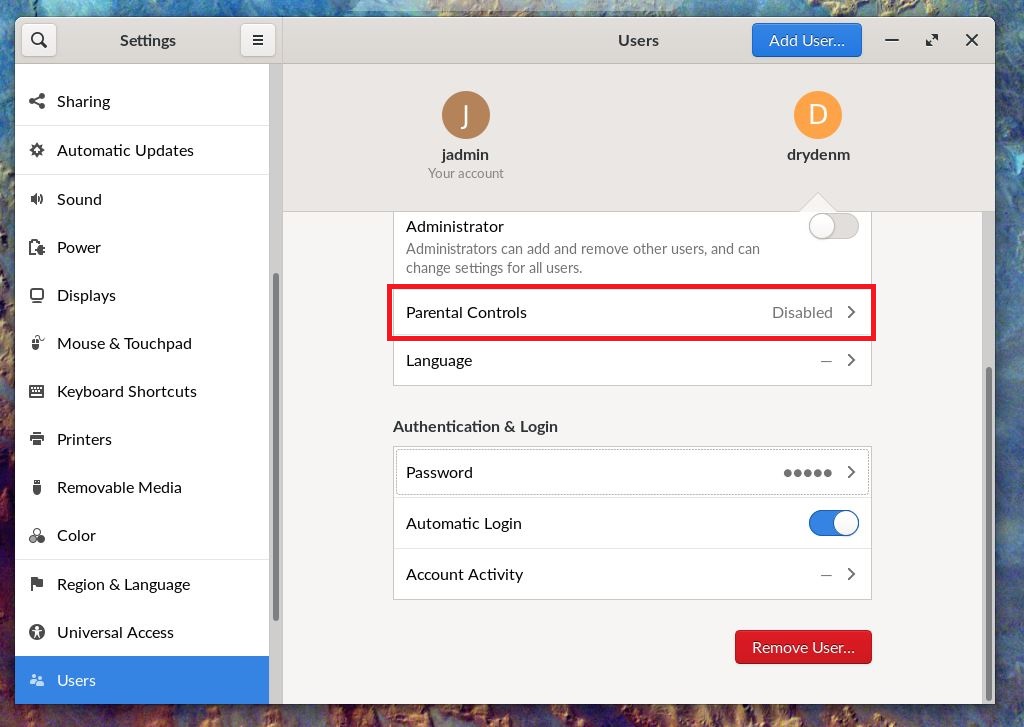
To edit the Parental Controls, click the “Parental Controls” button below the Administrator button
Note
This will require an additional entry of your admin credentials to turn on/off an account’s Parental Controls
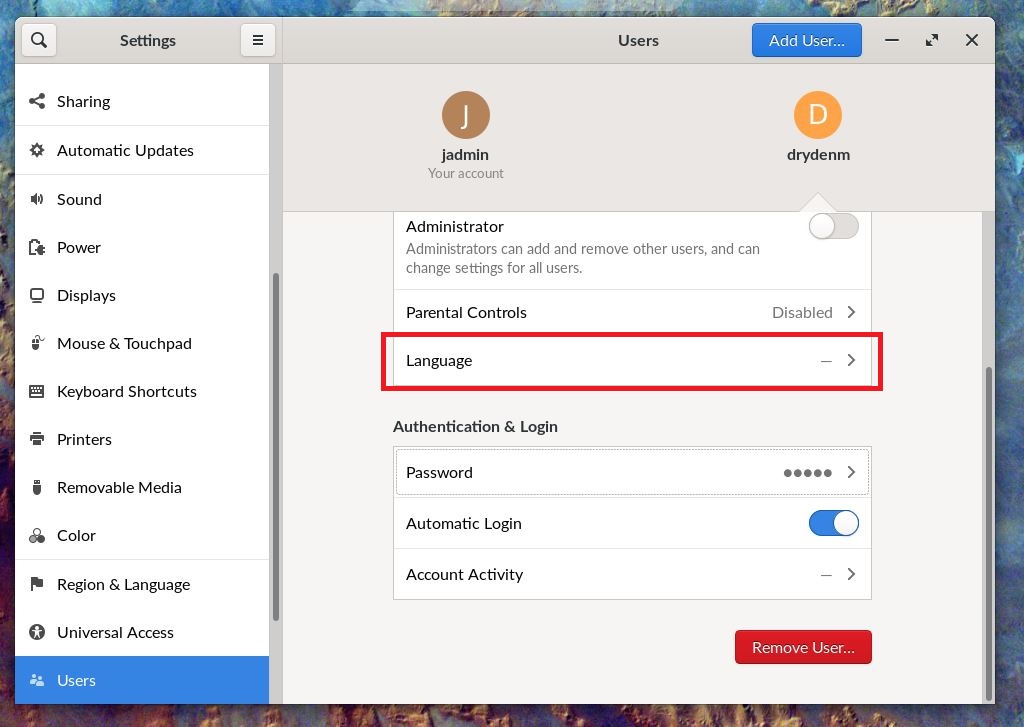
To change the Language of the profile, click the “Language” button and select a language from the list provided
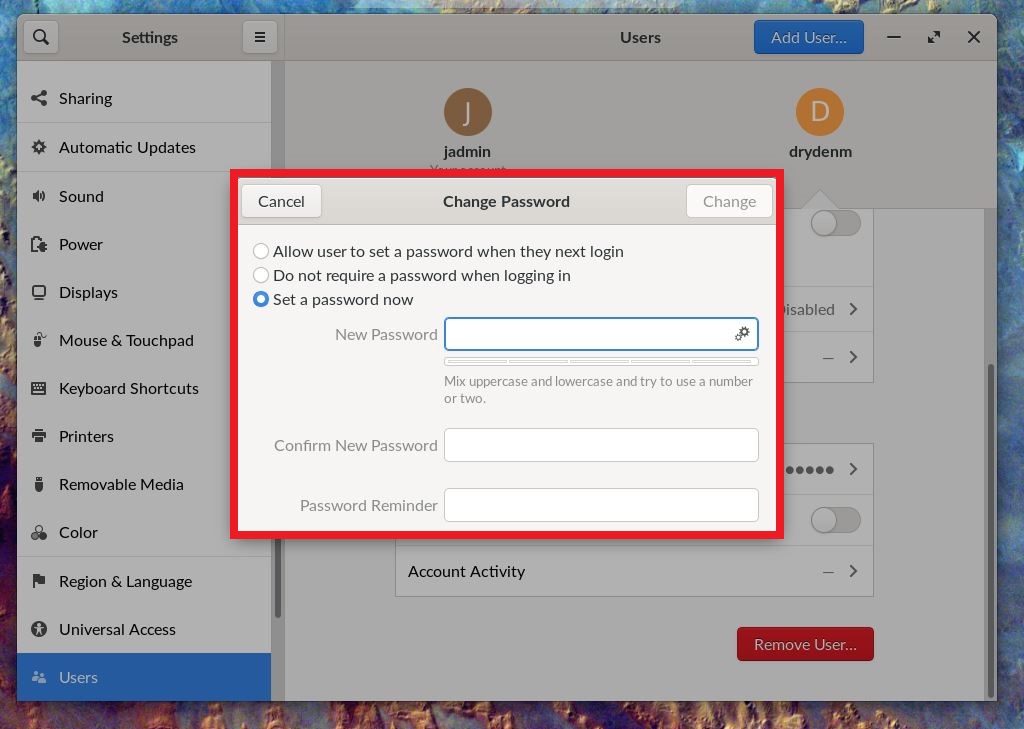
To change the Password, click the “Password” button and enter your new password and confirm it
To set your profile to automatically login, click the “Automatic Login” slide toggle
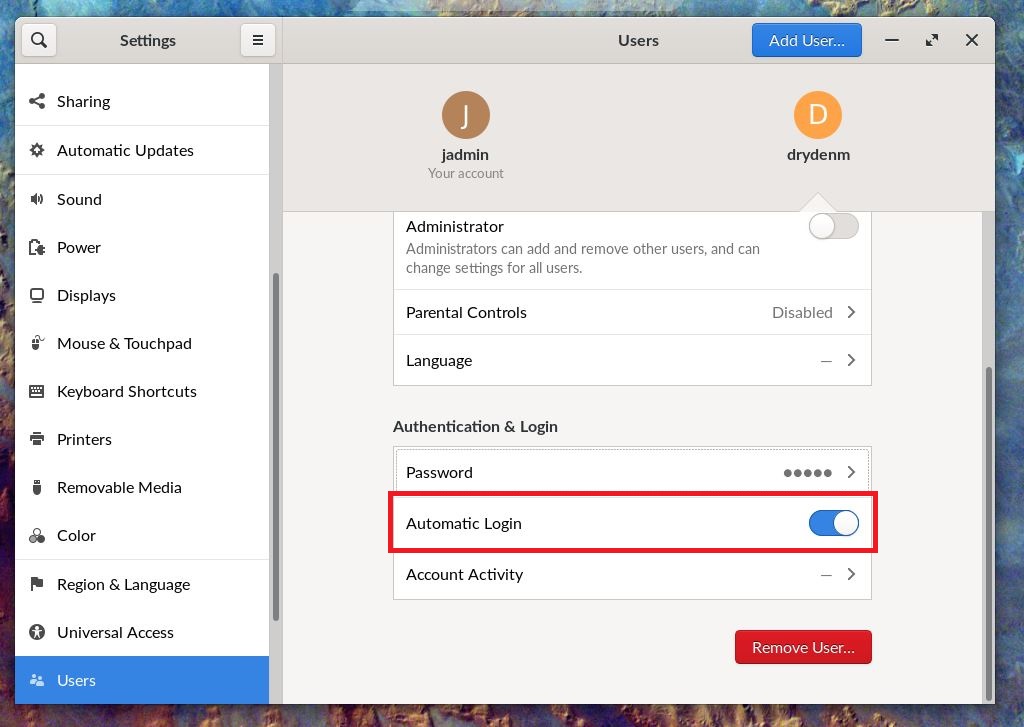
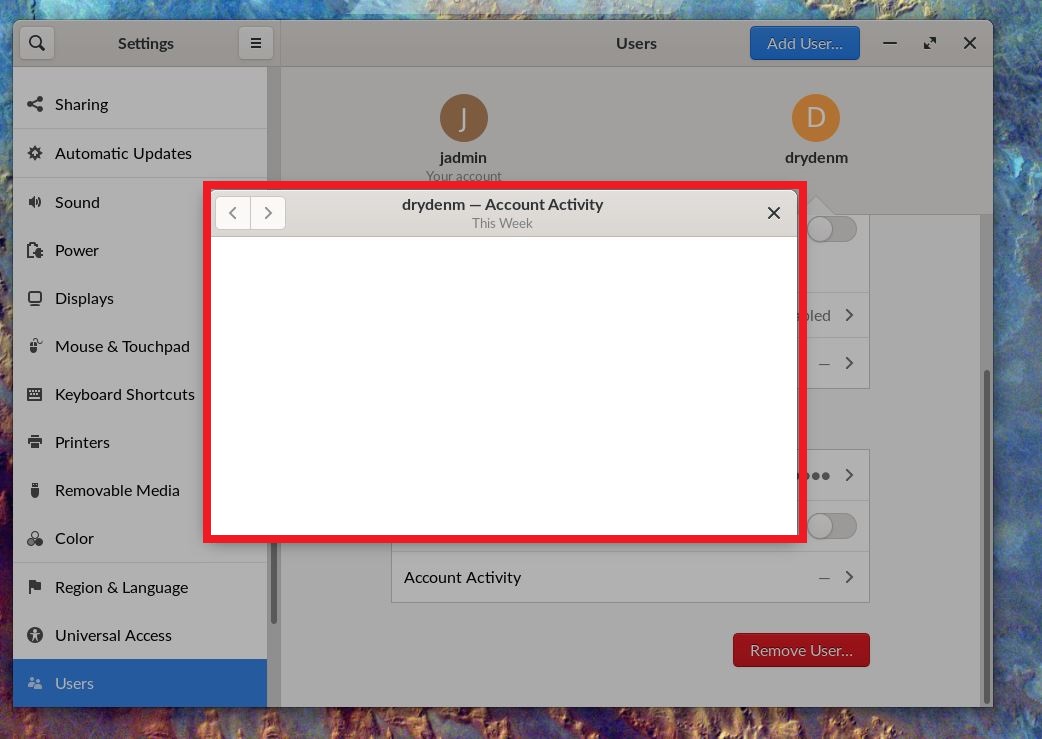
To view the account activity, click the “Account Activity” button