How to Install New Applications to EOS
This guide will help you learn to install new applications to the Endless OS Securebook
To accomplish this process, you will need:
WP Securebook
Red (Wi-Fi) Securebook Docking Station
Wireless Internet Network
To install new applications to the EOS Securebook, follow these steps:
Turn off the Securebook
Dock the Securebook onto the Red Docking Station
Turn on the Securebook
Log in to the jadmin account
Select the “More Apps” Desktop Icon

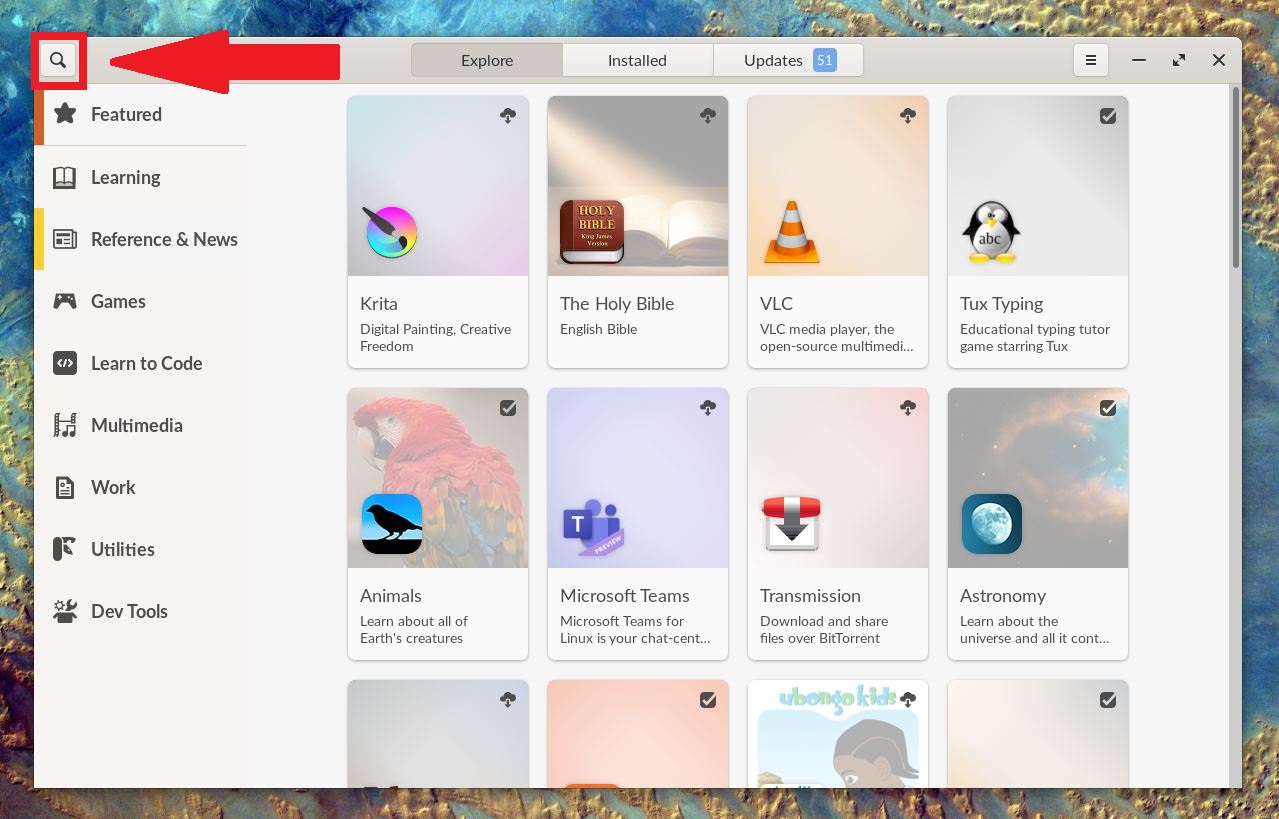
When the app center opens, search for the application you need using the categories on the left sidebar

Note
You can also try searching for the app by name with the search function, located by clicking the magnifying glass button in the very top left!
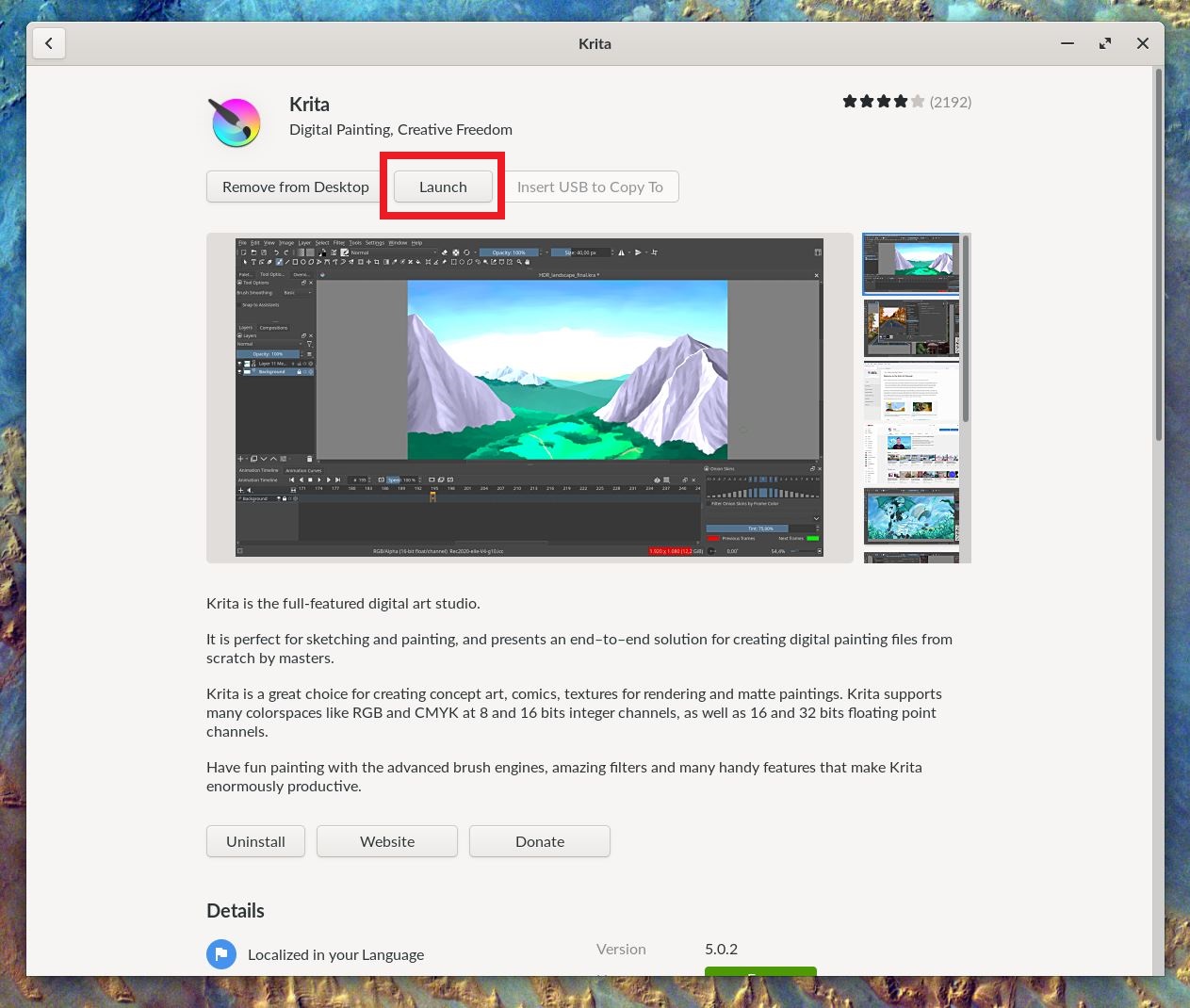
Click the “Download” button to install the application

Note
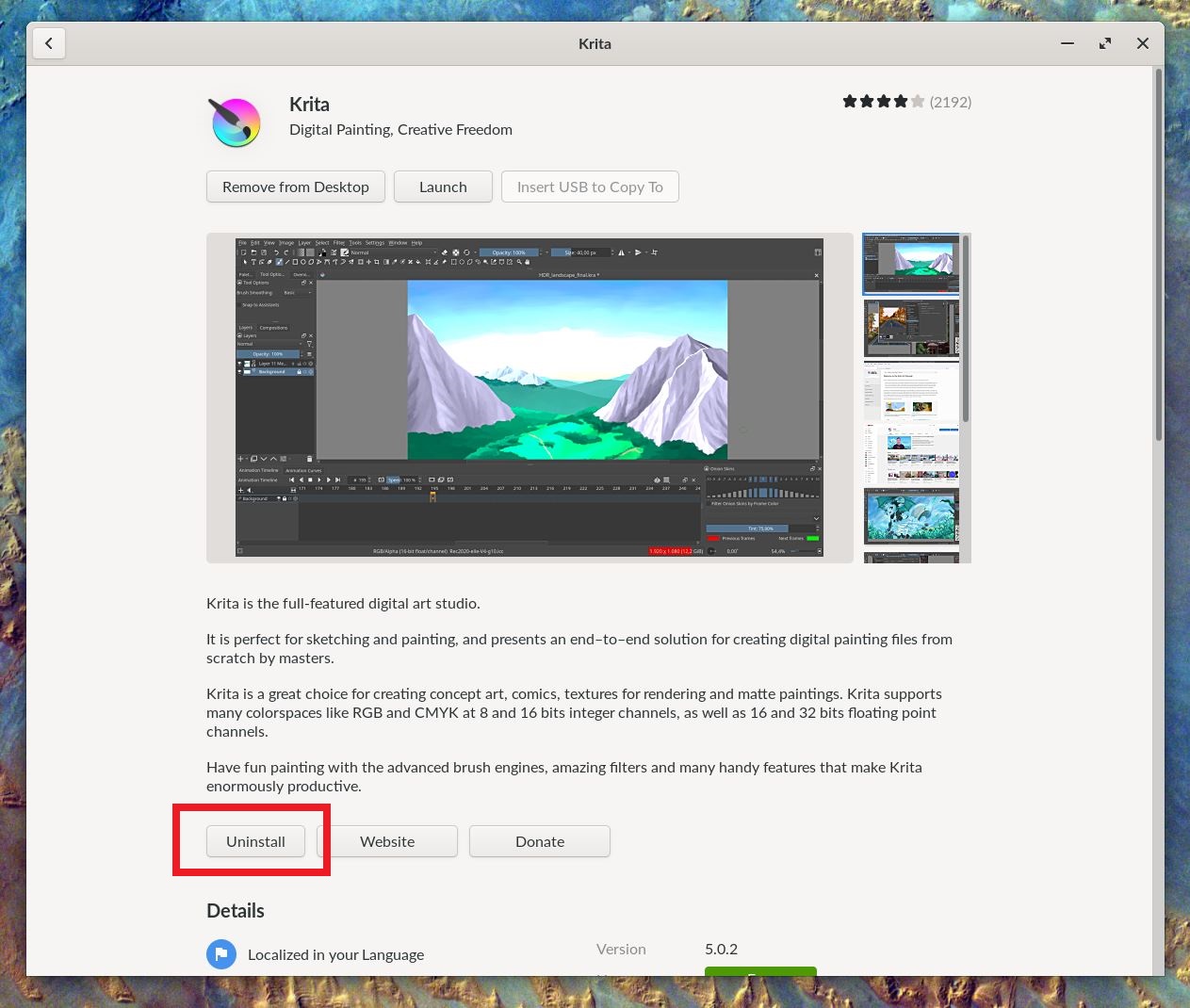
Applications can similarly be uninstalled by clicking the “Uninstall” button between the Application’s Description text and the Details
To launch the application, click the “Launch” button or Click the “Add to Desktop” button (if it isn’t automatically added to desktop) and then select the application from the desktop